Practical procedure and troubleshooting notes for Adding Devices to Apple Business Manager.
Author: Dylan Barrett
Date: 1/16/2026
Resource List
Enrollment Methods in Apple Business Essentials
Manage Apple Business Essentials Plans
Add Devices using Apple Configurator to Apple Business Manager
Add the Device to Apple Business Manger
You will need another apple device to enroll the device to Apple Business Manager
- If you do not already install Apple Configurator on another Devices as you will need this to onboard to new devices
- Sign in to Apple Configurator with an Administrator user
- Turn on the device that you would like to add to Apple Buisness Manager
- Follow the set up instructions on the devices untill you get to the connect to WiFi
- Once the device is on the connect to WiFi Screen open Apple Configurator on the second Apple device and ensure that it is near the device you are trying to onboard.
- There will be a animation on the device you are onboarding, scan that in the Apple Configurator Application
- This will tell you that for the device to be onboarded that it needs to be erased
- Click okay and one the device is back on it will be onboarded to Apple Buisness Manger
Add the Device to Apple Business Essentials
- The Device that you just added should now appear on the devices page witch you reach from the left navigation collum
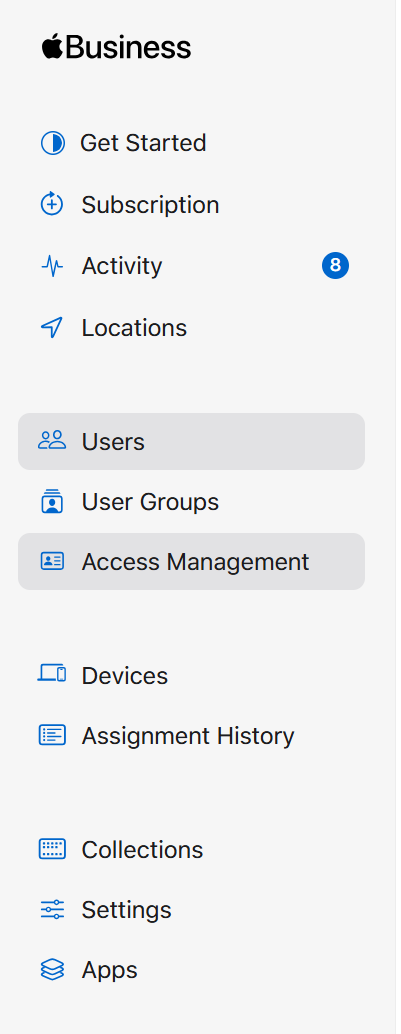
- Once you click on the device you should have the option to select the enrolment type
- Select Apple Business Essentials / Automated Device Enrollment
- This will allow you to manage the device within Apple Business Manager
Create Users for the Device
- In the Left Navigation Pane Select users
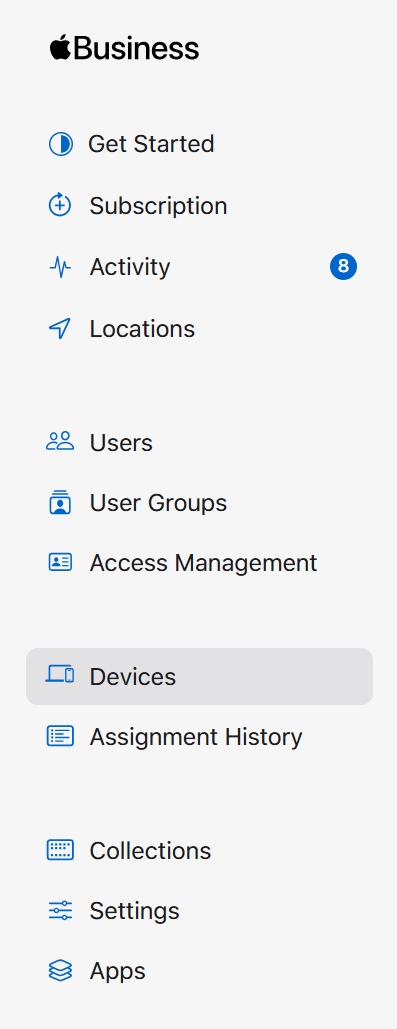
- At the top of the Second left Navigation Pane there is a plus button
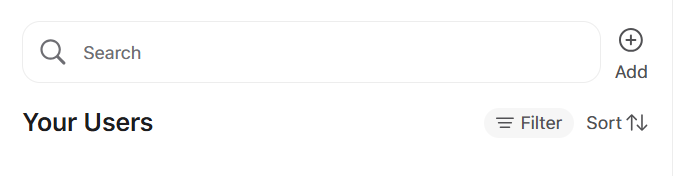
- Select the Plus button and this will open the new user screen
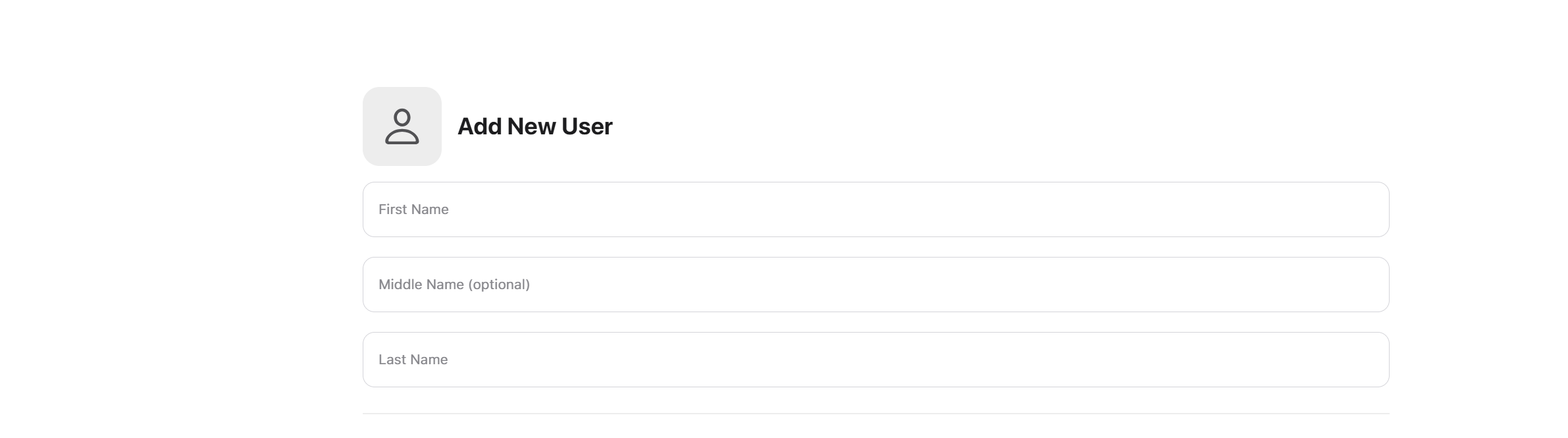
- Fill out the information on that screen and Select Save
Add the Users to a Plan
You may have device and user plans, This Article is specifically written for 1 user 1 device
- In the Left Navigation Collum Select Subscription
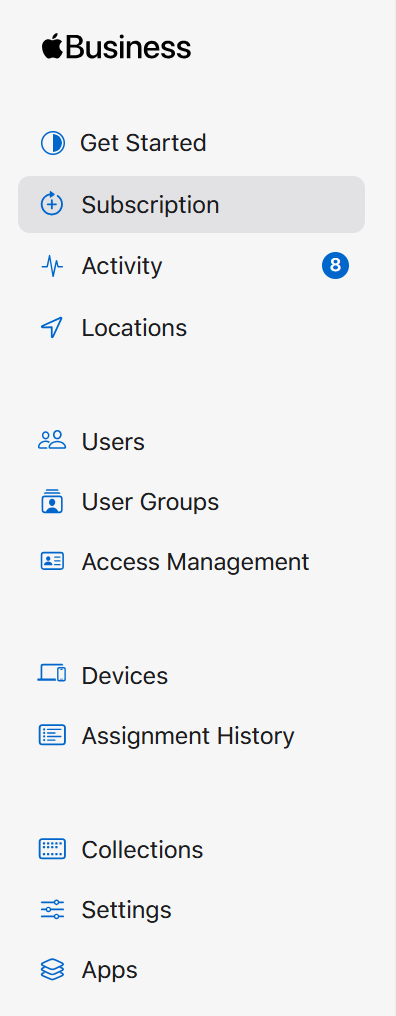
- In the Second Left Navigation Pane there will be a list of all of the subscriptions managed in Apple Buisnesss Manager select the plan that you will be adding the user to
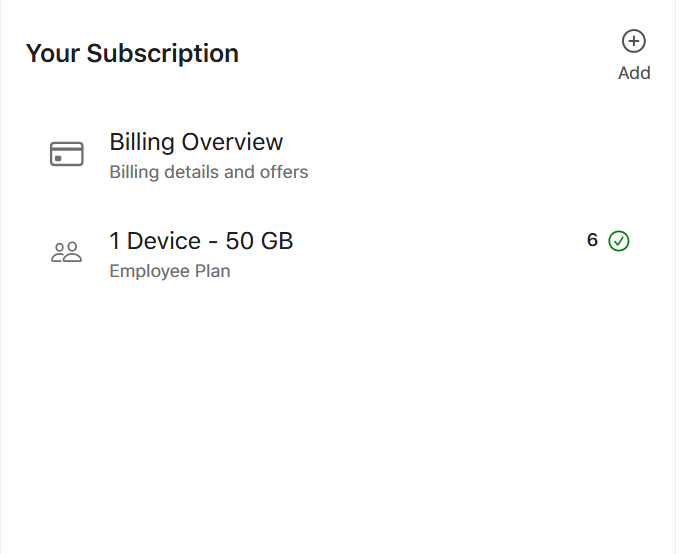
- This will open the configuration Options for that plan
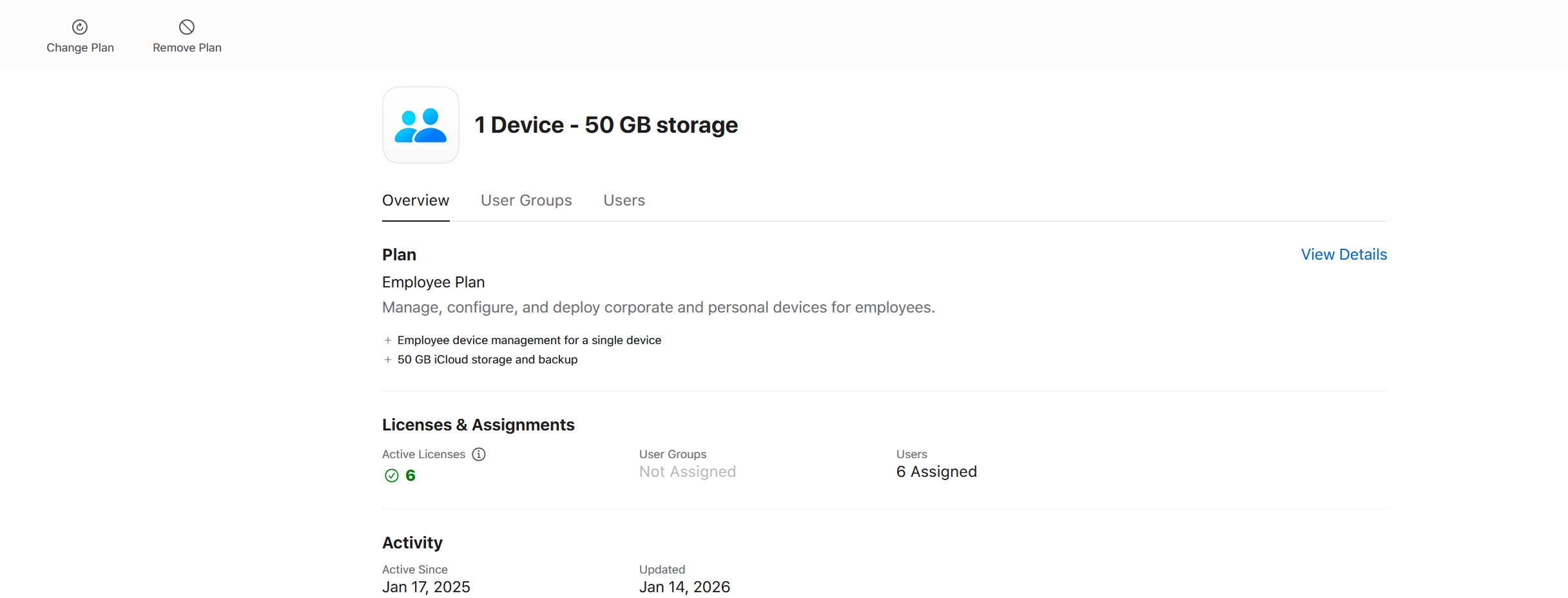
- Select Users in the Top Navigation Pane of the License configuration Window

- From Here you will be able to See a list of all users on this plane and add new users to this plan, Select search for users to add

- Select the user that you just created from the drop down.
Finish the Set up of the users device
- Select Users in the left Navigation Page
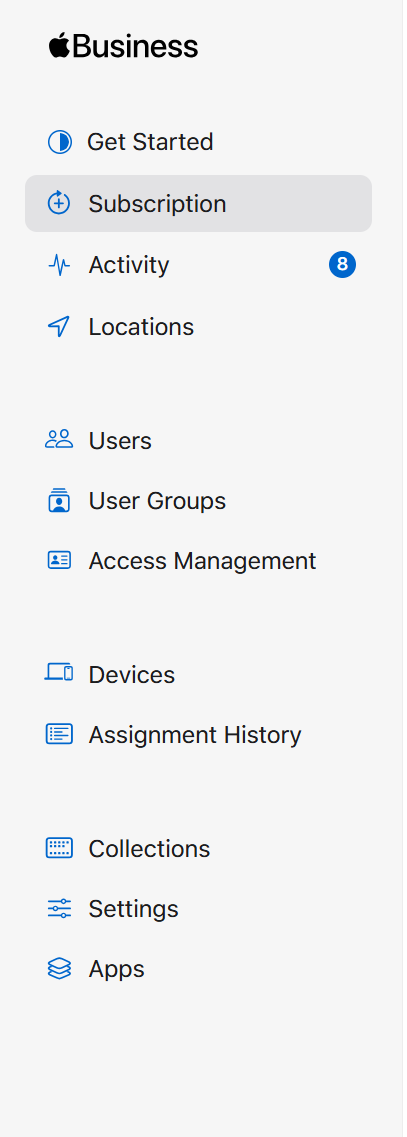
- Select the User that you have been working on
- On the Top of the page you will have the option to create a login for the user
- There will be two option in the create login pop up window "Create / Download a pdf" Or Email the user
- If you will be onboarding the device to send to the user open up the "Create / Download a PDF" if the user will be going through the OOBE then send the email
- If you are onboarding the device Keep the Popup window open as it will display the new password
- on The device that you are onboarding continue through the OOBE and sign in with the credentials in the pop up windows
- The OOBE will have you create a new password for the account and a pin for the device