Practical procedure and troubleshooting notes for Creating a New User.
- Log in to the Cisco Switch.
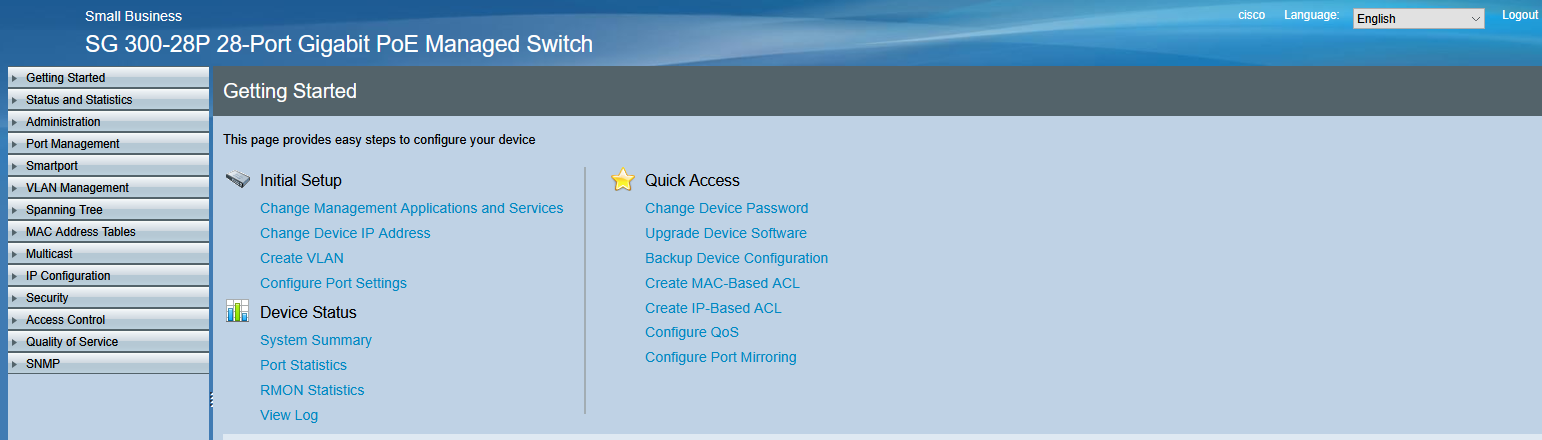
- Click on Administration.
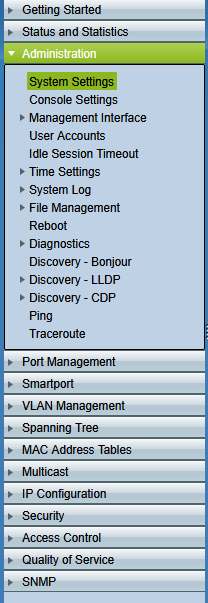
- Select User Accounts.
- Click Add to create a new user.
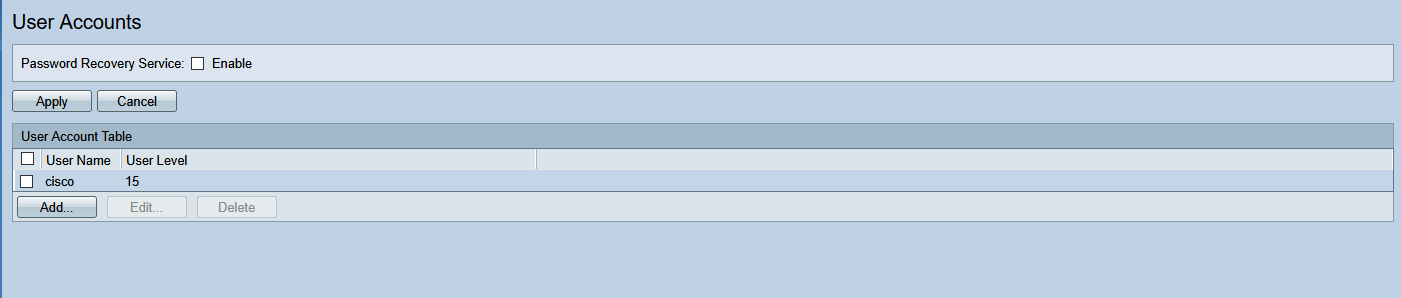
- In the pop-up window, fill out the new user's information and click Apply.
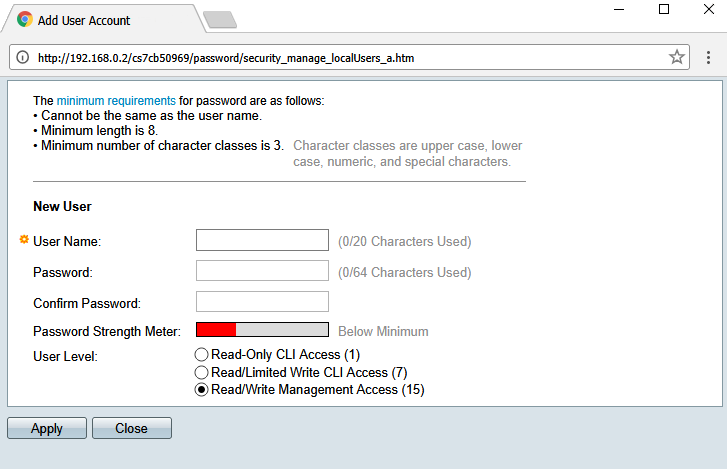
Changing the Default Account Credentials
- Check the box next to the Default Account, then click Edit.

- In the new window, change the Password to your desired value.
- Click the flashing Save button in the top-right corner.

- In the confirmation window:
- Save the Running Configuration to the Startup Configuration, then click Apply.
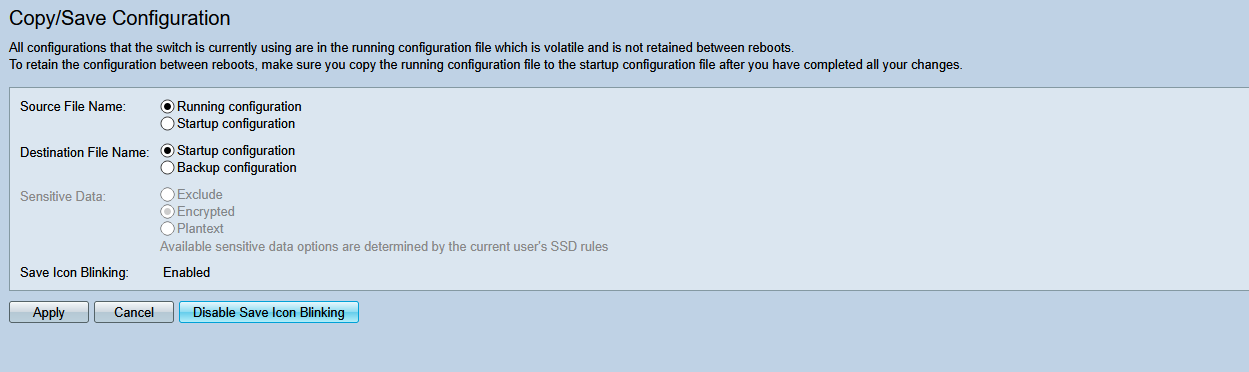
- Save the Running Configuration to the Startup Configuration, then click Apply.
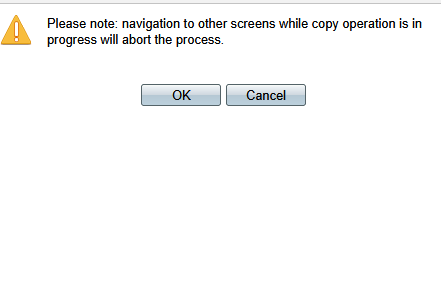
- Click OK in the confirmation pop-up.
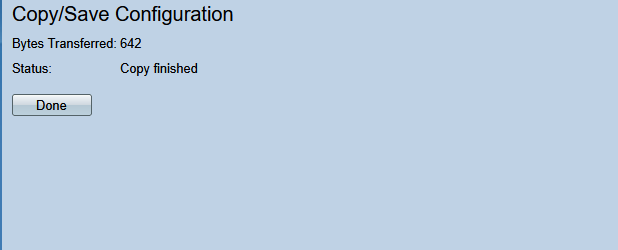
- Click Done to complete the process.