Practical procedure and troubleshooting notes for General Hardening on a Cisco Switch.
Disabling unused ports and enabling port security helps prevent unauthorized devices from connecting to your network. These steps strengthen the overall security posture of your Cisco switch.
Disable Unused Ports and Apply Port Security
-
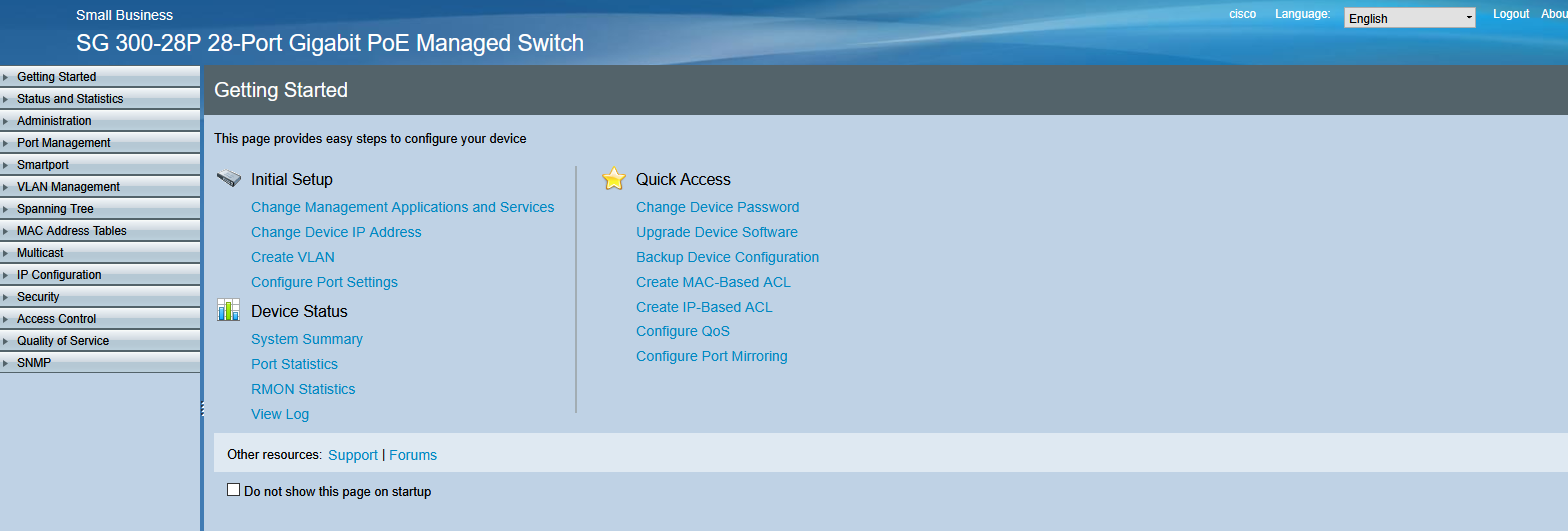
Login to the Cisco Switch
-
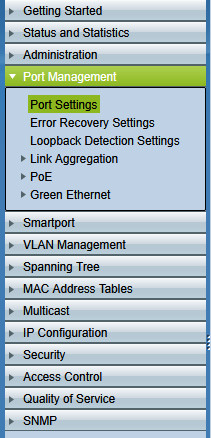
Click on Port Management
-
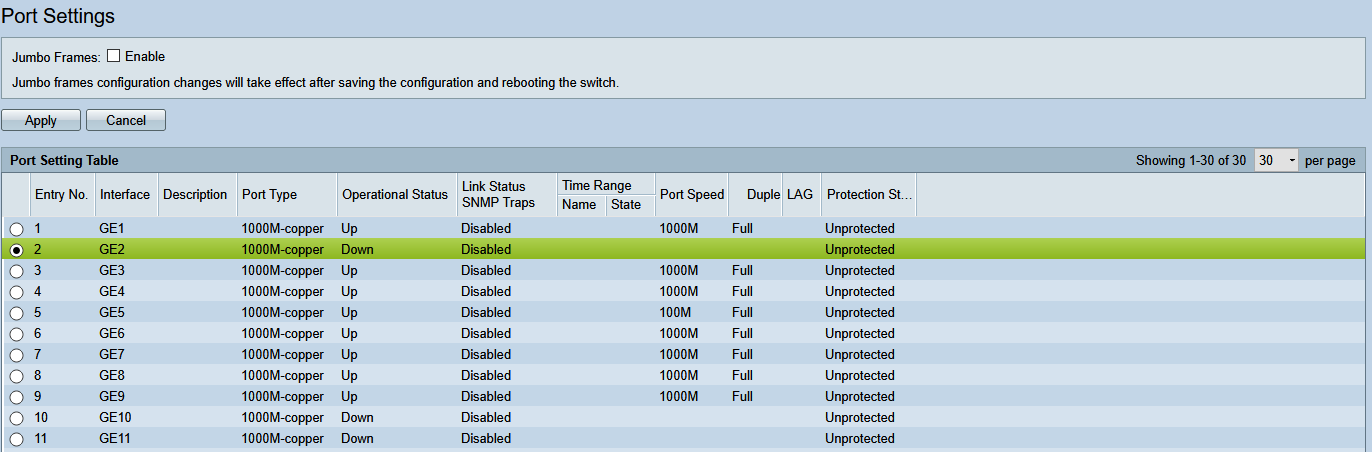
In the Port Management window, select any ports that are not currently in use by filling the radio button next to each one.
-
Scroll down to the bottom of the page and click on Edit.

-
In the pop-up window, set Administrative Status to Down.

-
Scroll down and click Apply.

-
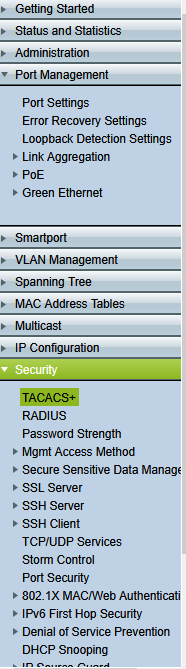
Click on Security.
-
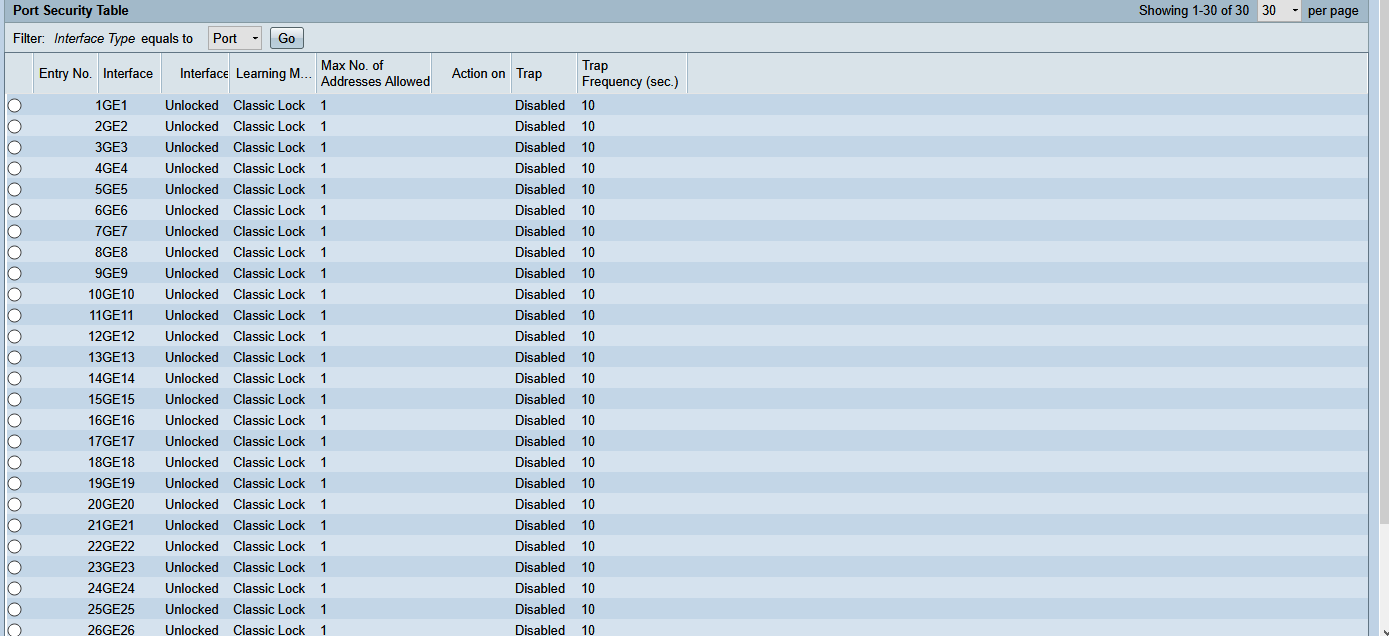
In the Security drop-down, select Port Security.
-
Click on any of the ports you want to configure by filling the radio button.

-
Scroll to the bottom of the page and click Edit.

-
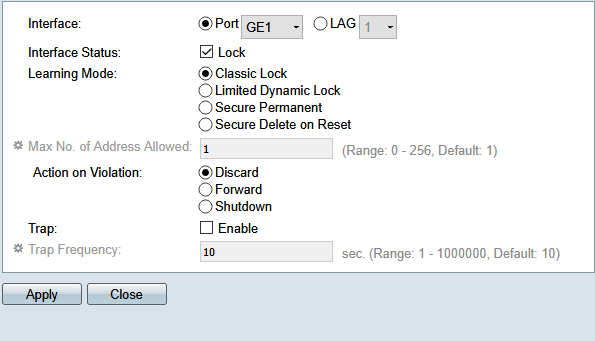
Inside the pop-up window, you can configure options such as:
- Interface Status
- Learning Mode
- Action on Violation
-
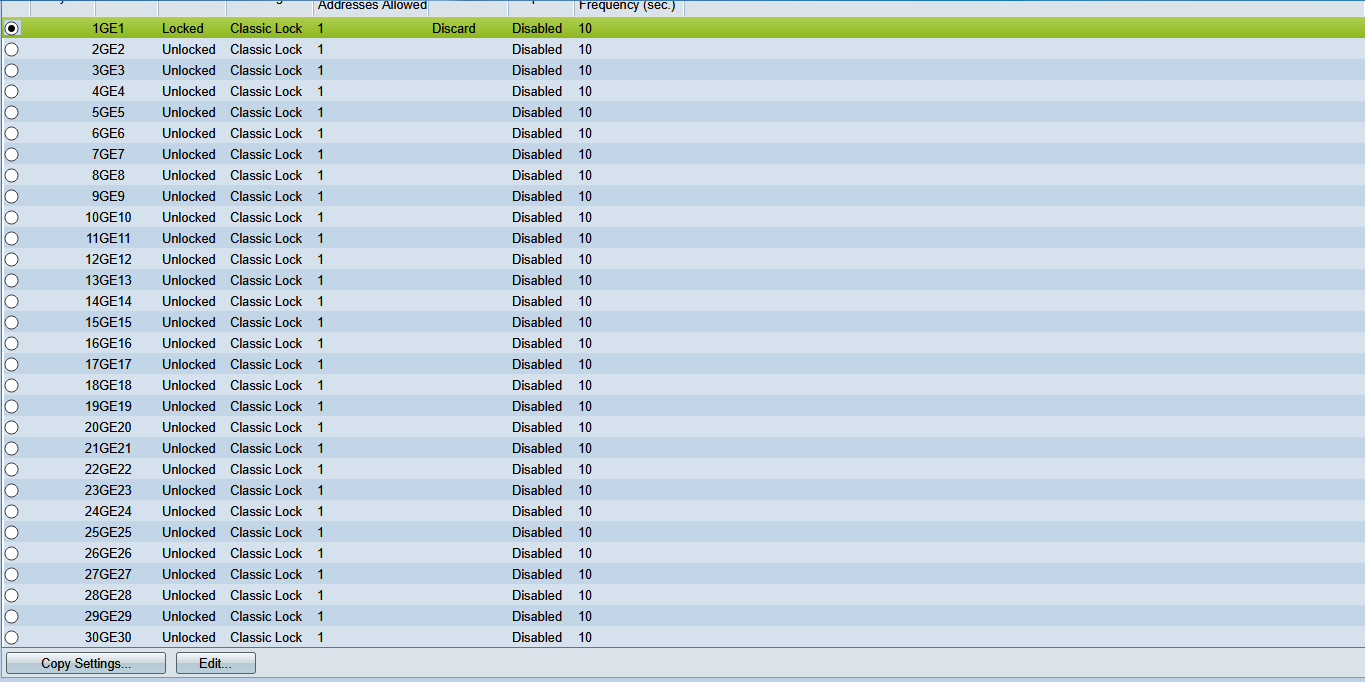
You can copy the settings of a port by selecting it and clicking Copy Settings at the bottom of the page.
-
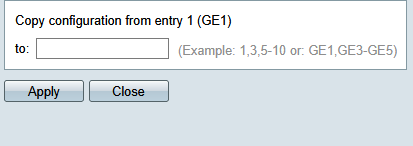
From there, you can copy that port’s security settings to a range of other ports.
-
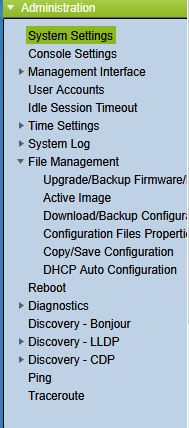
When finished, click on Administration.
-
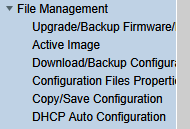
Click on File Management in the drop-down menu, then select Copy/Save Configuration.
-
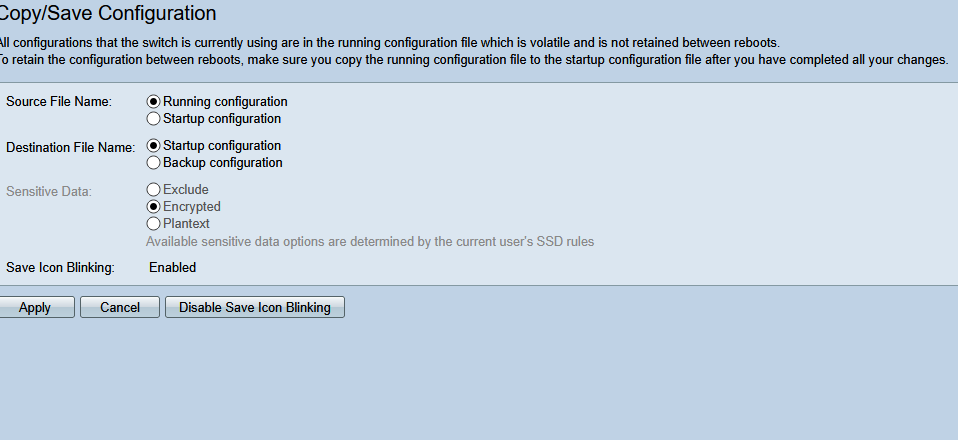
In the new window, select Save Running Configuration to Startup Configuration, then click Apply.
-
Click OK in the pop-up window.

-
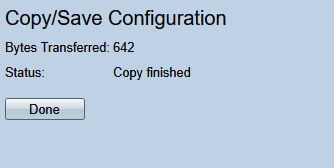
Click on Done.
💡 Tip: Remember to document which ports have been intentionally disabled for future troubleshooting or configuration changes.