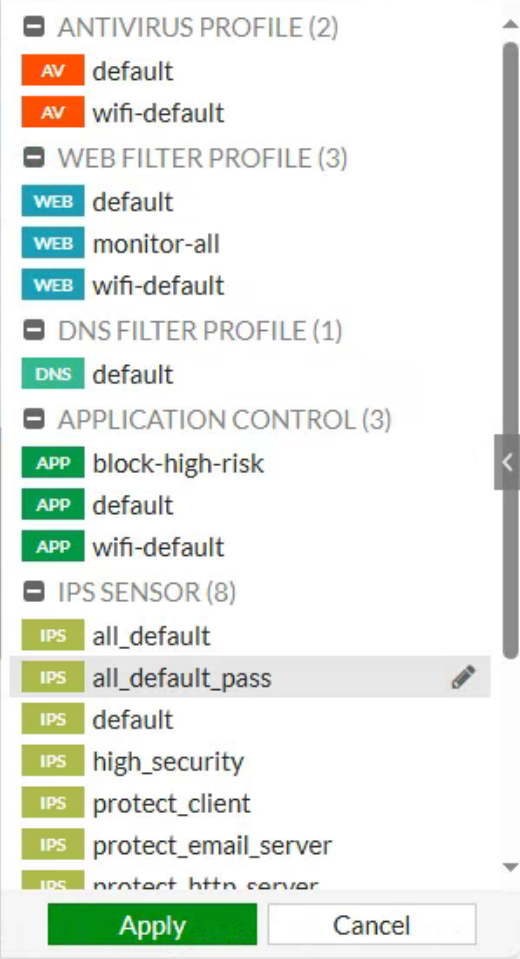
Practical procedure and troubleshooting notes for Configuring IPS on a Fortinet Firewall.
-
Log in to the Fortinet Web Console.
-
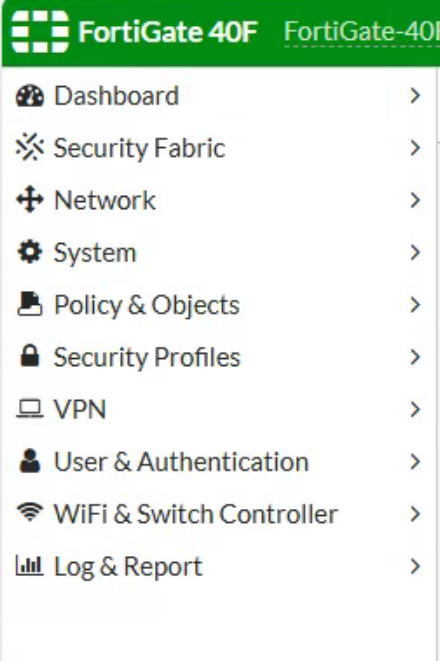
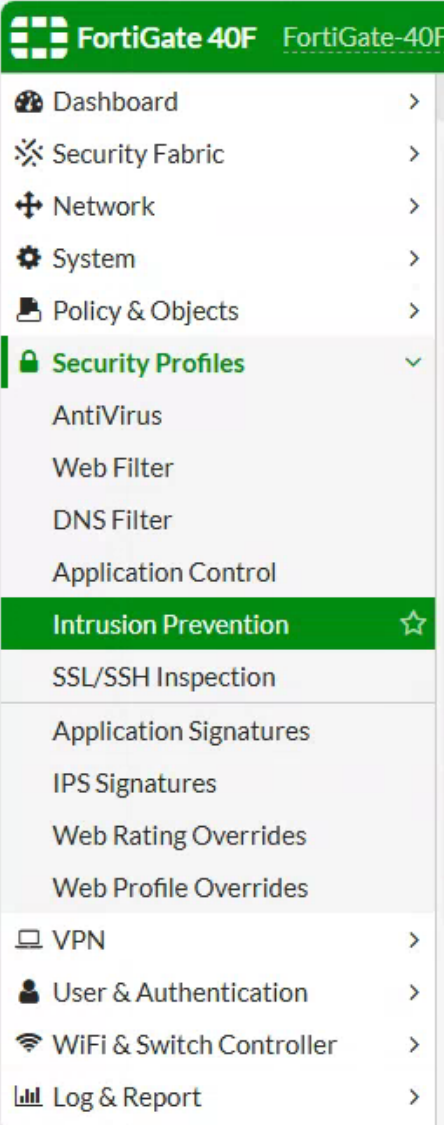
In the left navigation pane, select Security Profiles.
-
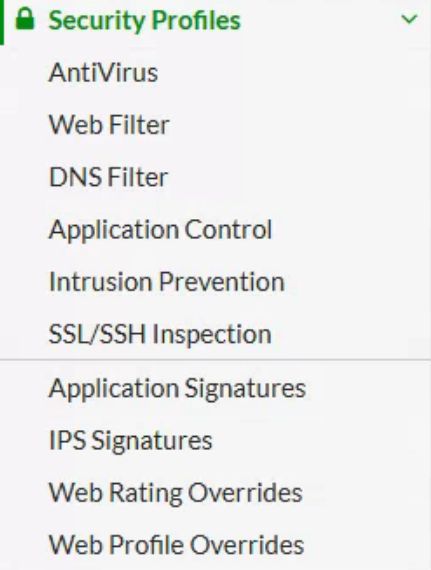
In the Security Profiles drop-down, select Intrusion Prevention.
-
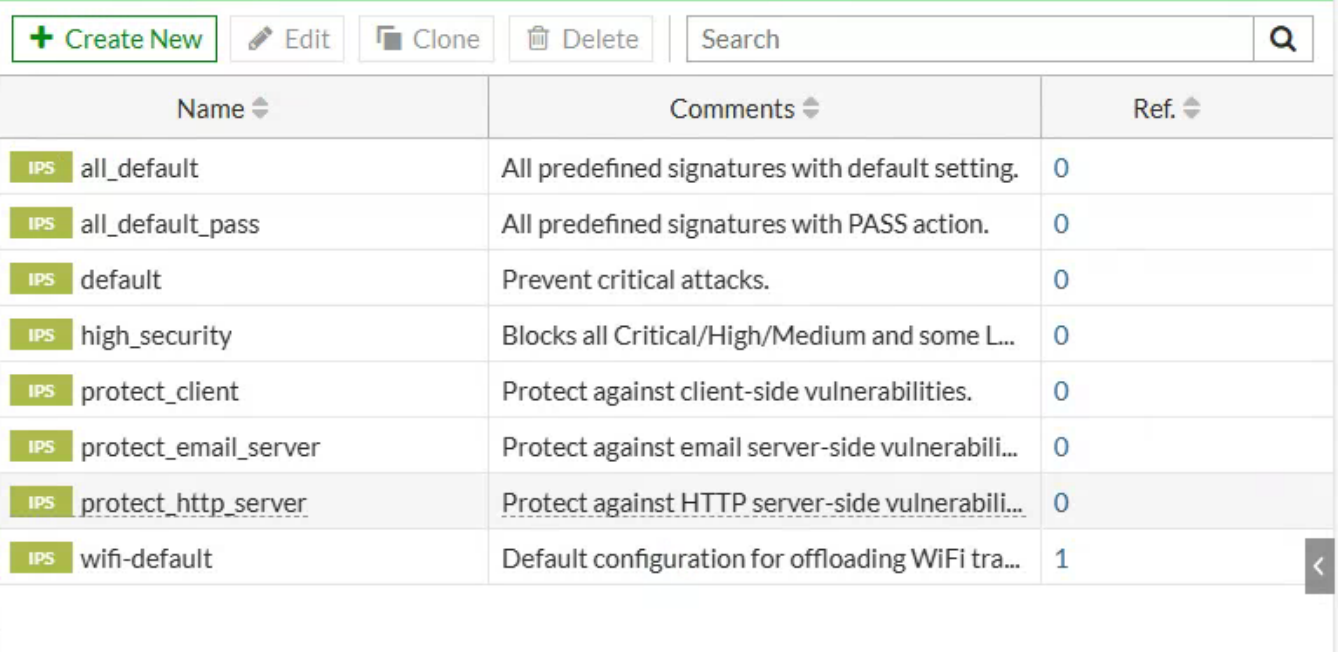
This brings you to the Intrusion Prevention page.
-
Double-click the Intrusion Prevention Profile you want to use.

-
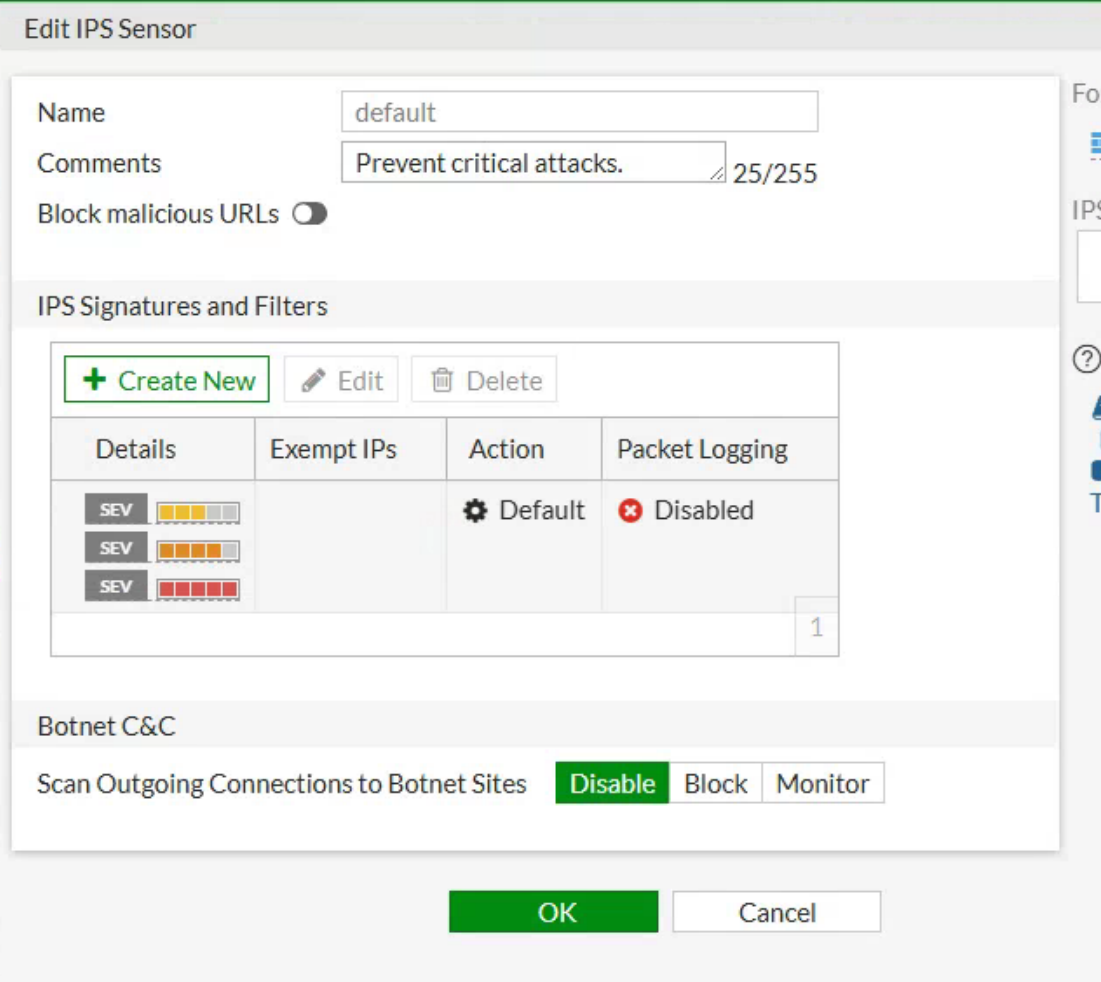
Enable Block Malicious URLs.
-
In the IPS Signatures and Filters section, double-click a signature to edit it.
-
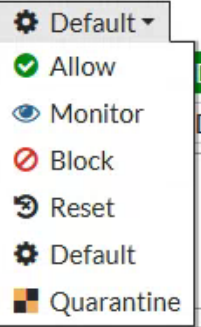
On this page, you can configure the following:
- Action
- Packet Logging
- Status
- Additional Filters
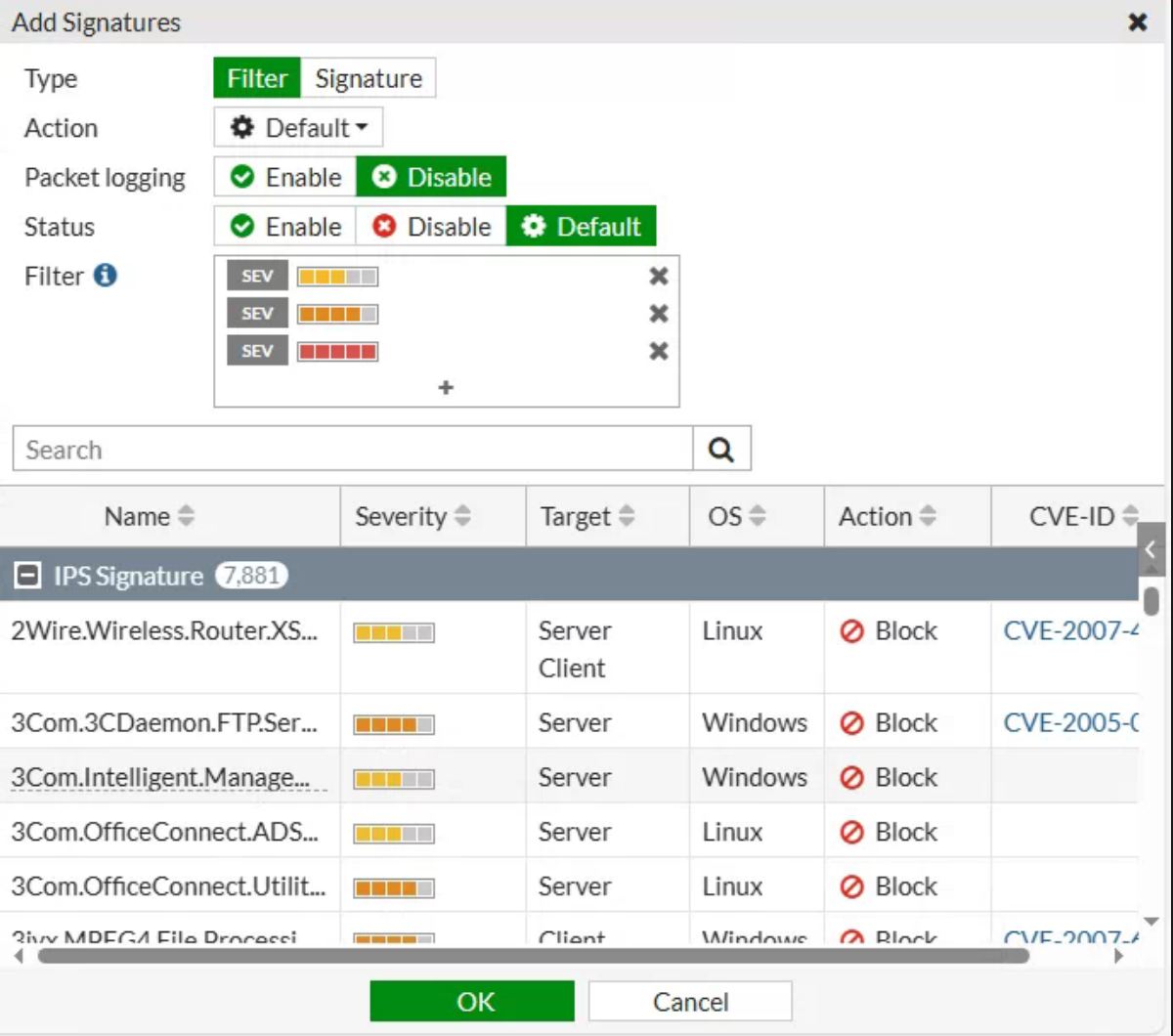
- Action
-
Click OK when you are done configuring.
-
Back on the Edit IPS Sensor page, you can choose to Disable, Block, or Monitor Botnet C&C traffic.

-
Make sure to click OK at the bottom of the Edit IPS Sensor page when finished.

-
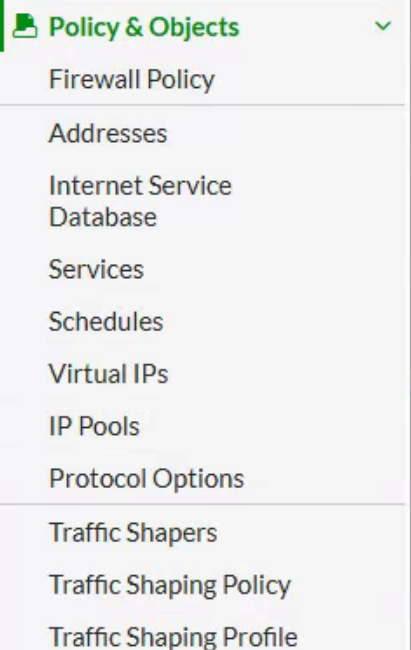
In the left navigation pane, select Policy & Objects.
-
In the Policy & Objects drop-down menu, click Firewall Policy.
-
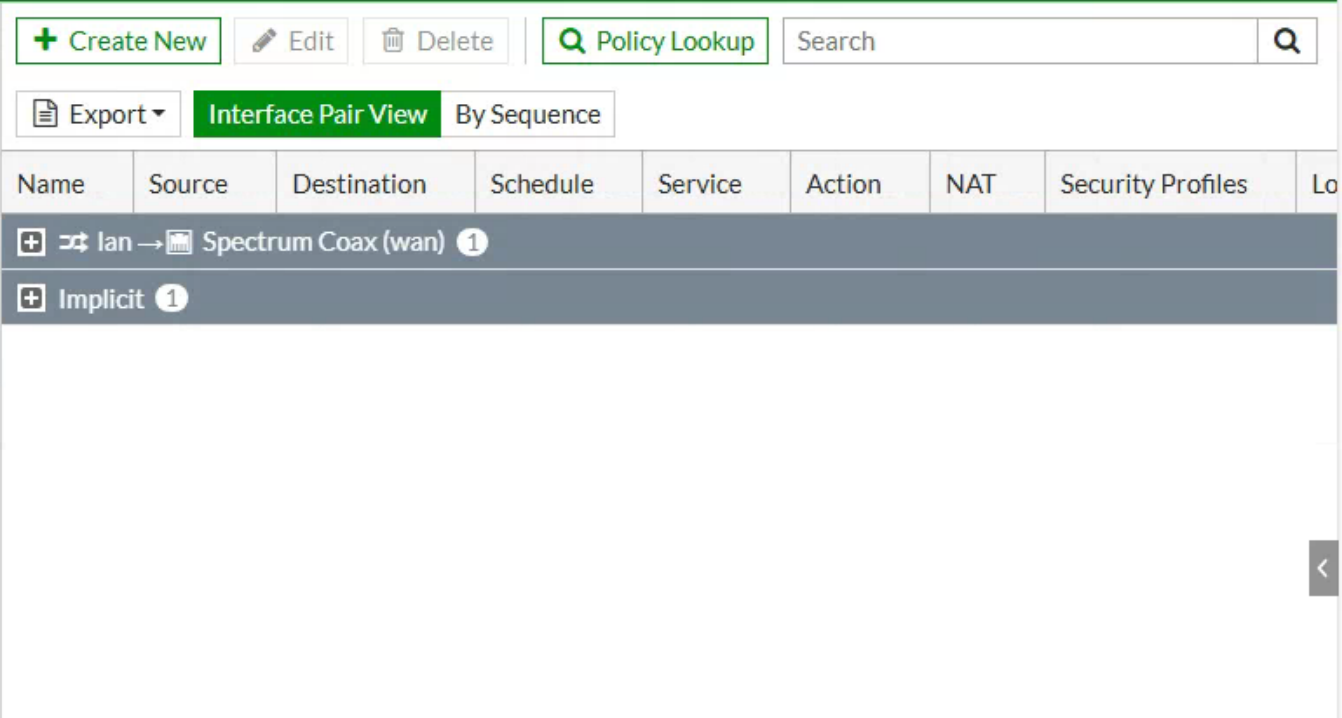
This brings you to the Firewall Policy page.
-
Click the plus icon (+) on the interface where you want to enable IPS services.

-
Hover over the Security Profiles column and click the pencil icon to edit.

-
From here, select the IPS Sensor, highlight it, and click Apply to assign it to the interface.