Practical procedure and troubleshooting notes for Create a New Subnet.
- Log in to pfSense.
- Click on Interfaces.
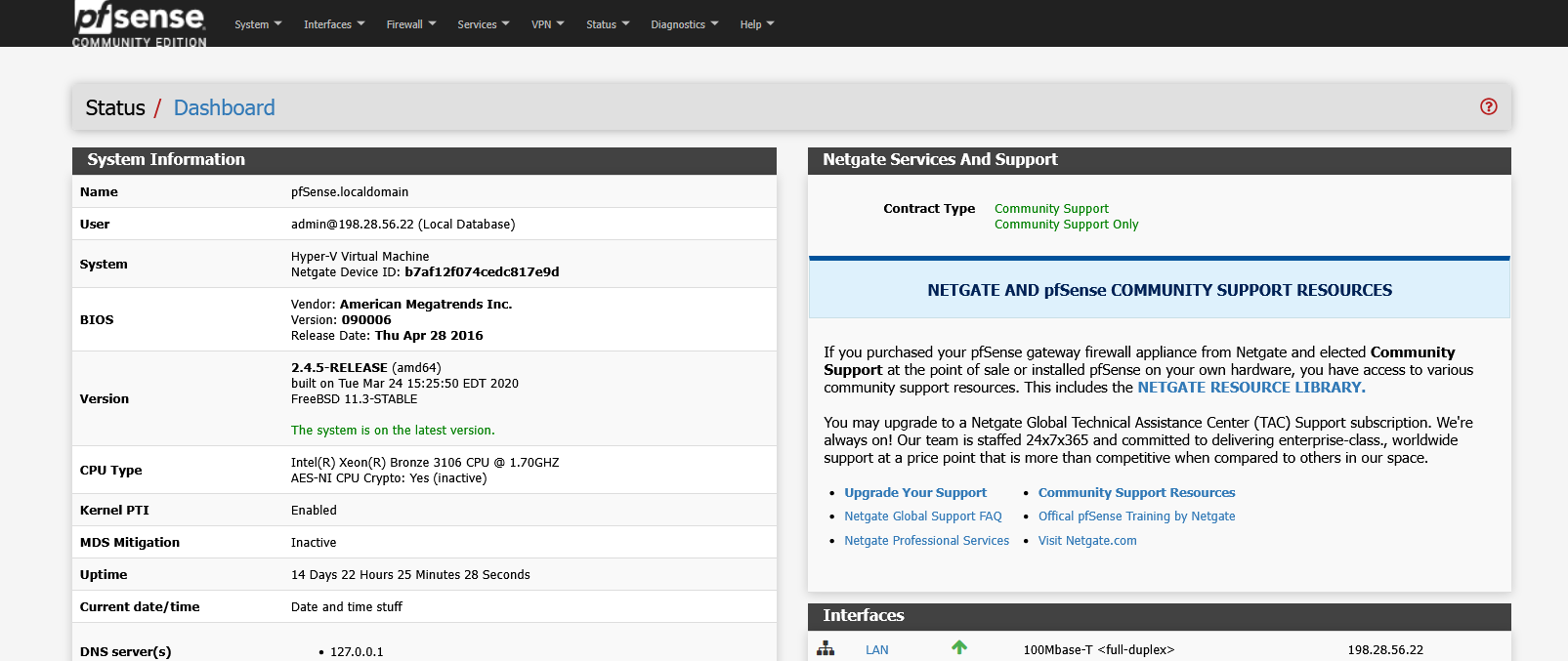
- Select Assignments.
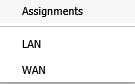
- Click Add under the Available Network Ports section.

- Click Save.
- Return to Interfaces.

- Click on the new interface you just created.
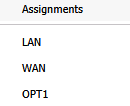
- Fill out the General Configuration for that interface (e.g., name, IPv4 type, subnet).
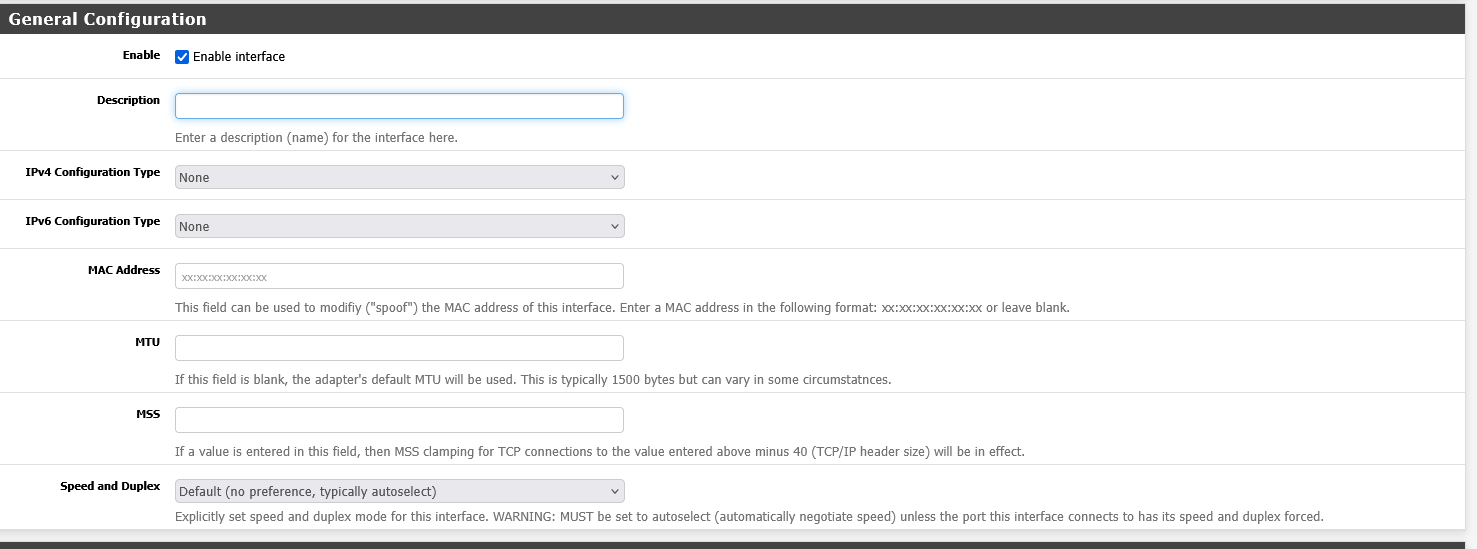
- Click Save.

- Click on Firewall.

- Select Rules.
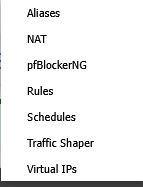
- Click on the interface you just configured (for example, DMZ).

- Click Add to create a new rule.

- In the Edit Firewall Rule window, leave most settings as default — this rule will allow traffic on the new interface.
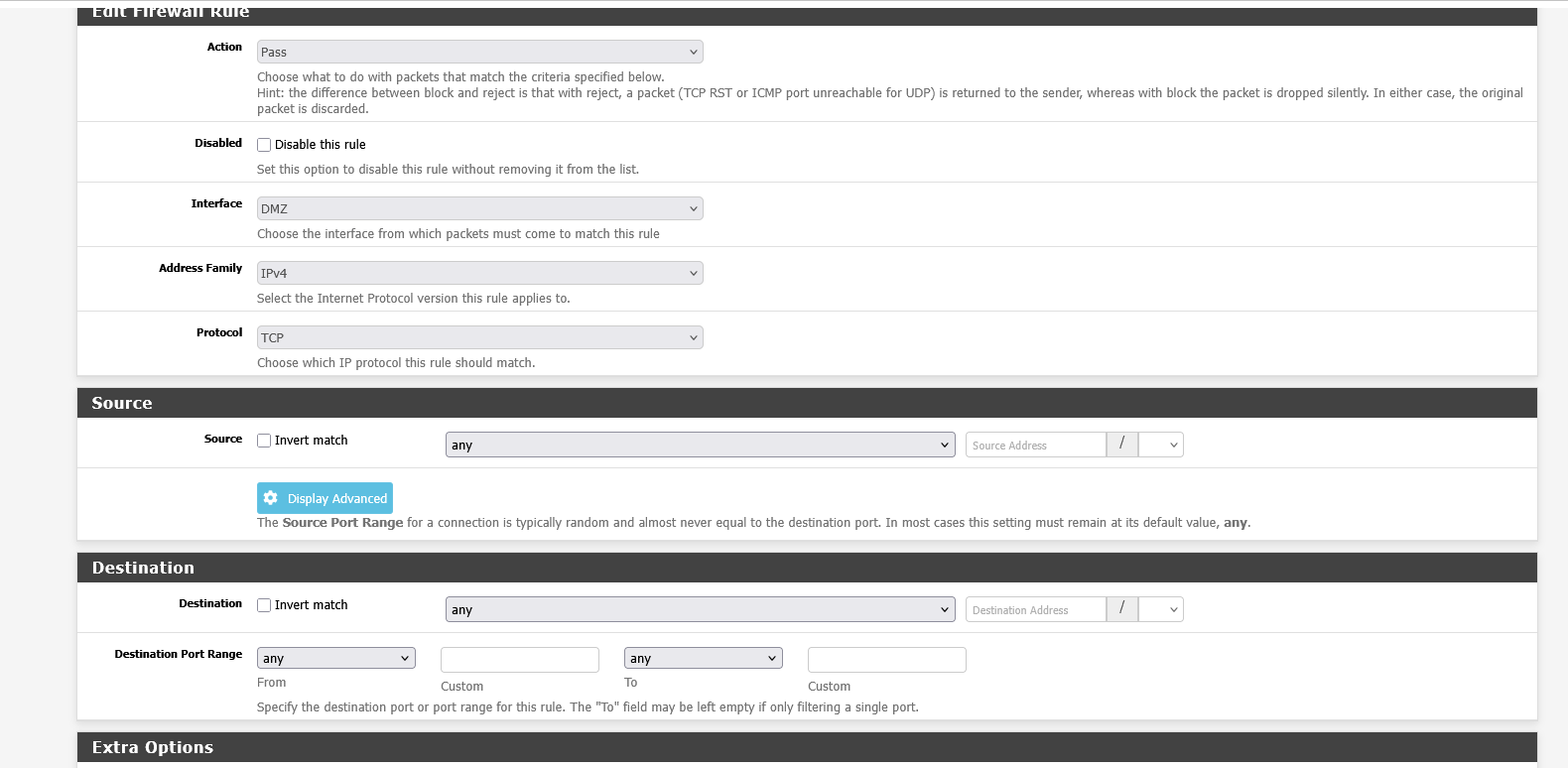
- Click Save.

- Click on Services.

- Select DHCP Server.
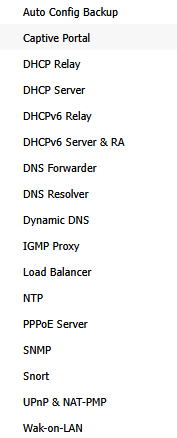
- Choose the interface you just created.

- Configure the DHCP scope information for this interface, including:
- Range: The start and end IP addresses for DHCP leases
- DNS Servers: (optional) Custom DNS servers for clients
- Gateway: Default gateway for devices on this subnet
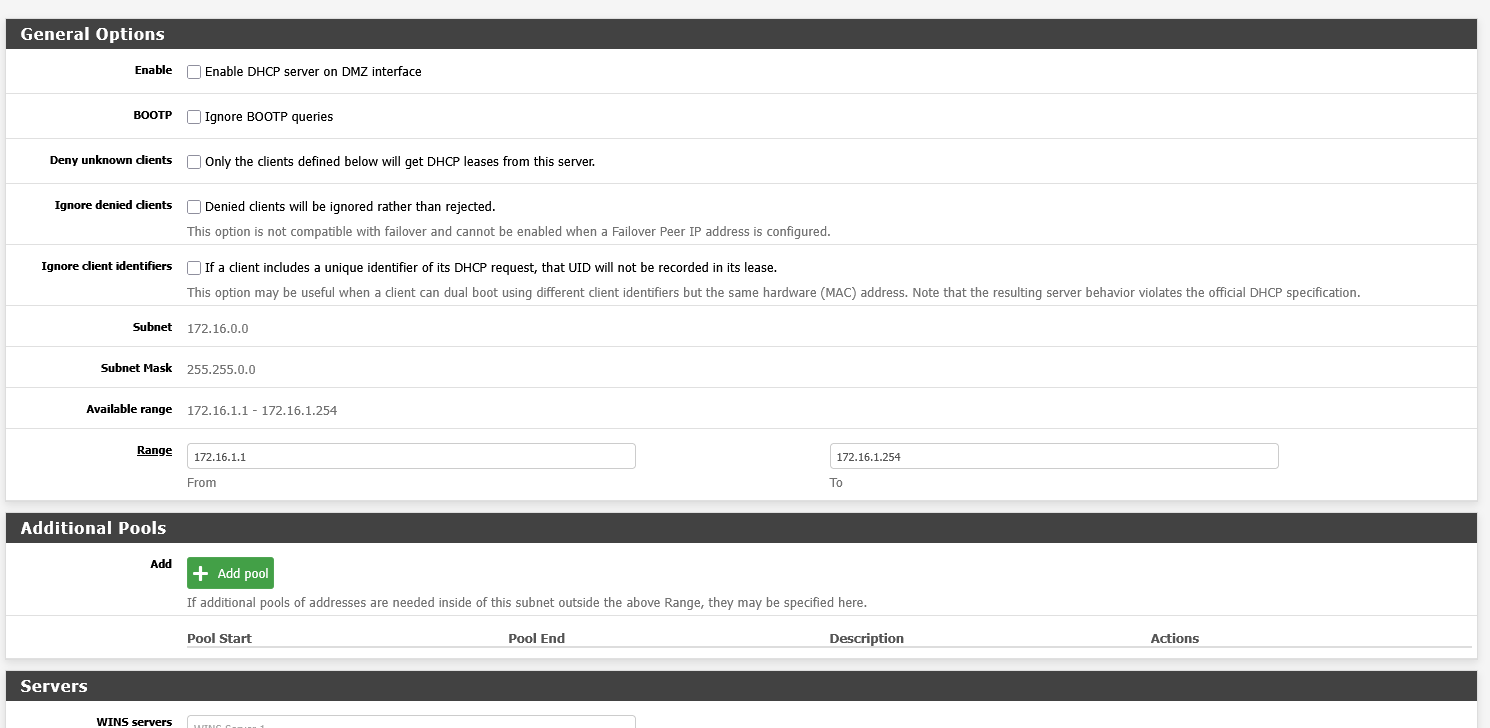
- Scroll down and click Save.
