Practical procedure and troubleshooting notes for Configuring IPS services.
-
Log in to the SonicWall firewall.
-
At the top of the page, select Policy.

-
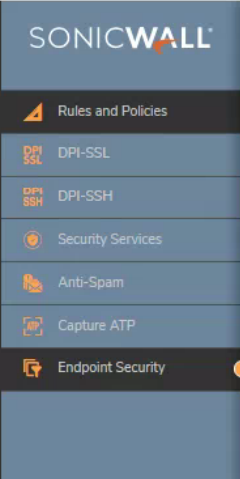
In the left navigation menu, select Security Services.
-
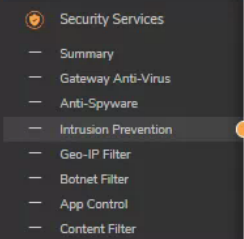
In the Security Services drop-down, select Intrusion Prevention.
-
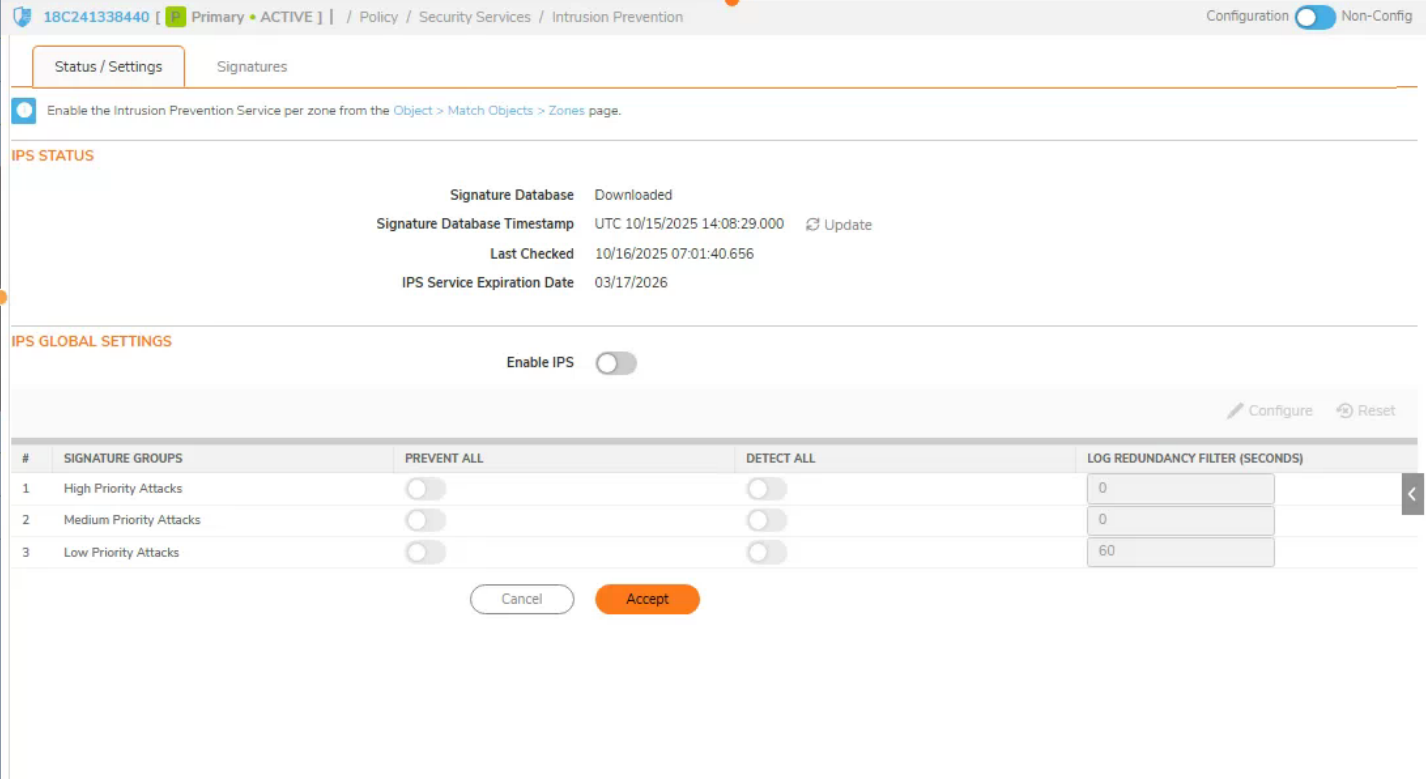
This will bring you to the Intrusion Prevention page.
-
On this page, you can configure the Intrusion Prevention Services (IPS):
- Enable IPS
- Select whether you would like to Prevent or Detect.
- Recommendation: If this is your first time enabling IPS, select Detect All instead of Prevent All. This allows you to monitor traffic and ensure that critical services are not being blocked.
- Select Accept at the bottom of the page.
-
In the Intrusion Prevention navigation menu, select Signatures.

-
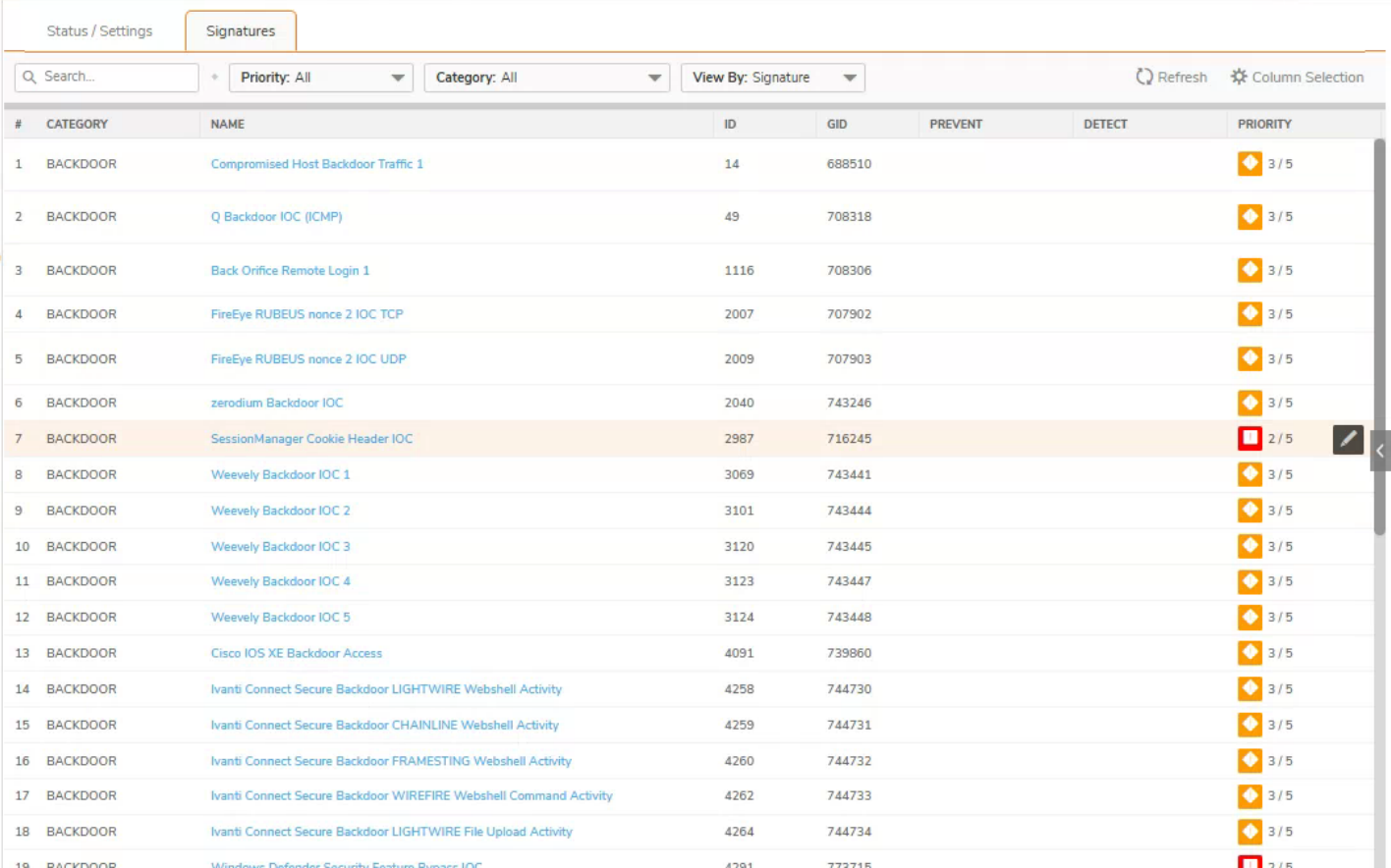
From here, you can view all of the signatures available for detection or prevention.
-
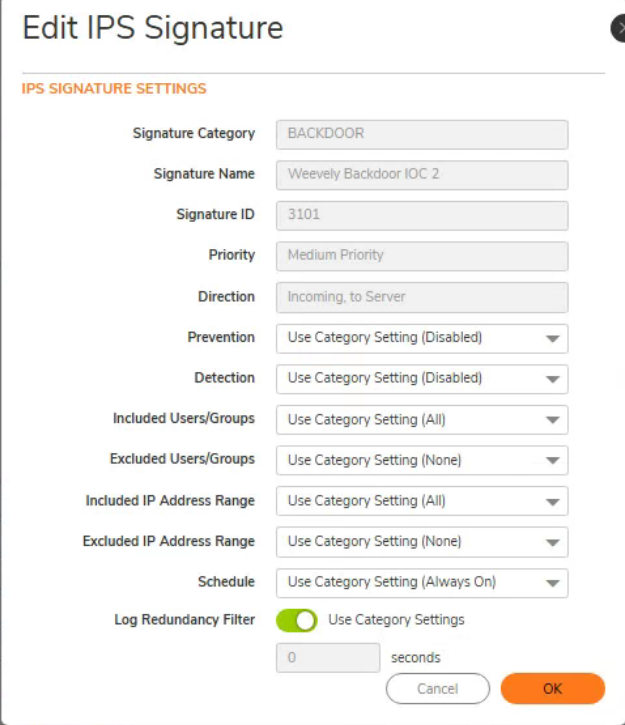
Hover over a specific signature to display a pencil icon, which indicates you can edit that signature’s settings.

-
The Edit IPS Signature window will appear, allowing you to modify the settings for that signature.
-
Once you’re comfortable with your Intrusion Prevention settings, go to Object in the top navigation menu.

-
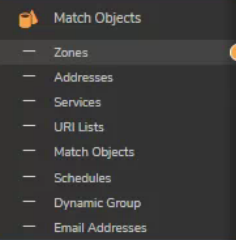
In the Match Objects drop-down menu, select Zones.
-
This will open the Zones page, where you can verify that IPS is configured for each zone.
