Practical procedure and troubleshooting notes for Adding a Computer to a Local Domain.
Prerequisites
Before joining a Windows 11 computer to a local domain, ensure the following:
- You have network connectivity to the domain controller.
- The computer is configured to use the domain’s DNS server.
- You have valid domain administrator credentials (or an account with permissions to join devices).
- The domain name (FQDN) is known (e.g.,
mydomain.local).
Steps to Join the Domain
-
Open Windows Settings.
-
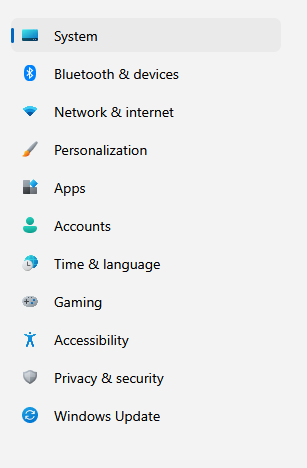
Ensure you are on the System tab in the left navigation menu.
-
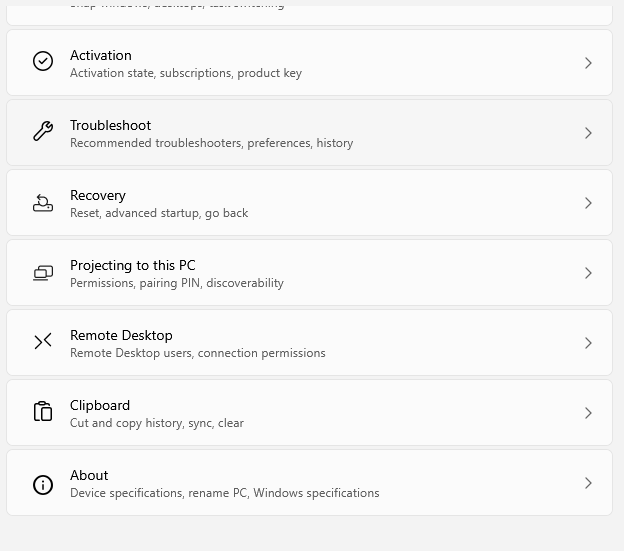
Scroll down and select About.
-
In the About section of this PC, look for Domain or Workgroup in the Related Links section.

-
Select Domain or Workgroup.
-
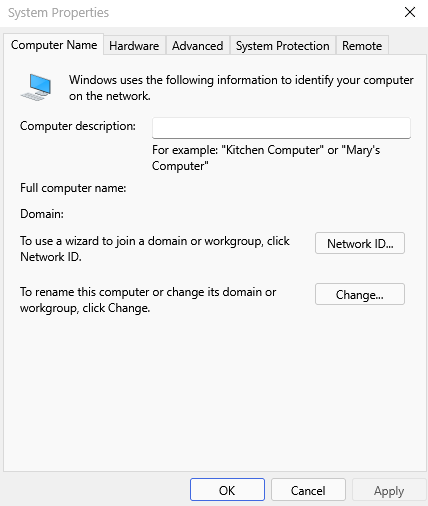
The System Properties window will pop up.
-
Click Change next to "To rename this computer or change its domain or workgroup."
-
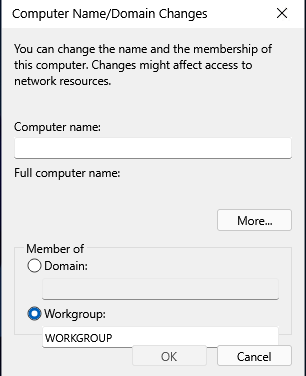
The Computer Name/Domain Changes window will appear.
-
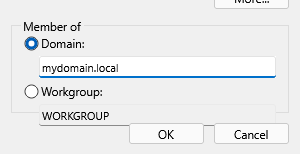
Select the radio button for Domain.
-
Enter the FQDN of the domain you want to join (e.g.,
mydomain.local).
-
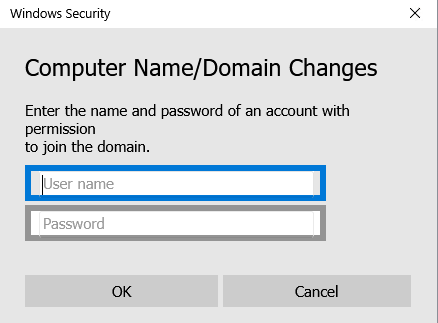
When prompted, sign in with an administrative domain account in the Windows Security pop-up.
-
Follow the prompts and restart the computer.
-
Once the computer restarts, you can log in with any domain user account.