Practical procedure and troubleshooting notes for Configuring User Access Control to Elevate Automatically.
-
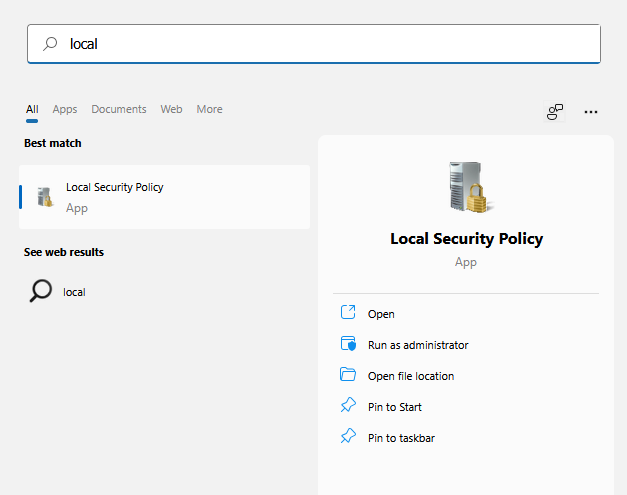
In the Windows Search bar, type Local Security Policy.
-
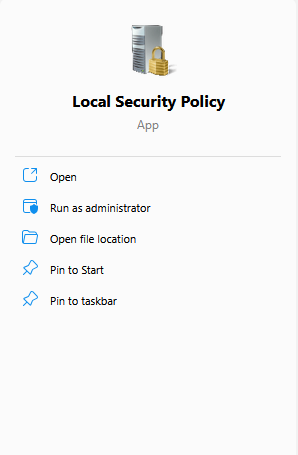
Right-click and select Run as Administrator.
-
Navigate to:
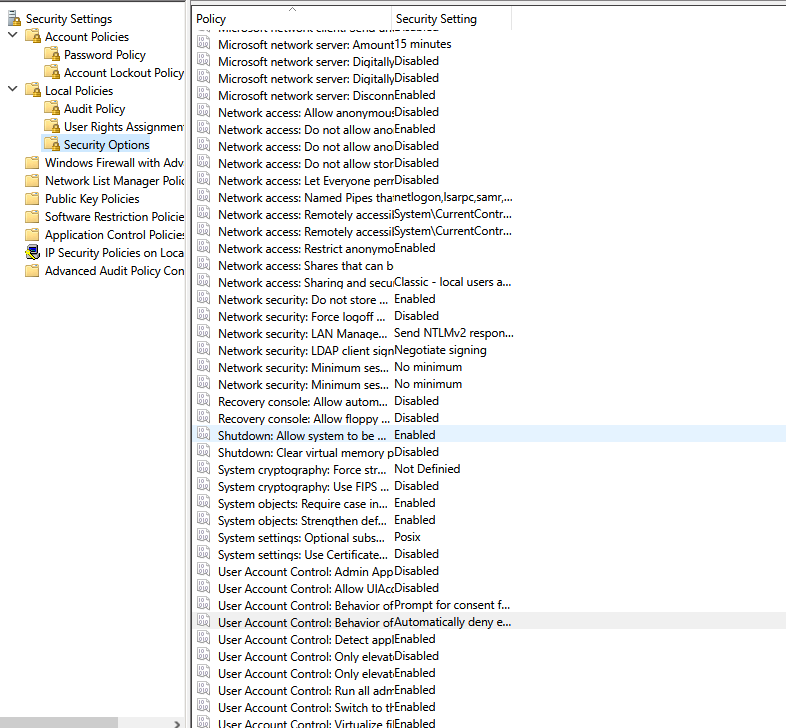
Security Settings → Local Policies → Security Options
-
Configure the following options:
- User Account Control: Behavior of the elevation prompt for standard users → Automatically deny elevation requests
- User Account Control: Behavior of the elevation prompt for administrators in Admin Approval Mode → Elevate without prompting
✅ You have now configured User Access Control (UAC) to elevate automatically on the local machine.