Practical procedure and troubleshooting notes for Creating a Virtual Hard Disk in Hyper V.
A Virtual Hard Disk (VHD) allows you to create and manage virtual storage for your virtual machines.
Follow these steps to create one in Hyper-V on Windows 11:
1. Open Hyper-V Manager
Launch Hyper-V Manager from the Start menu.
2. Select the Server
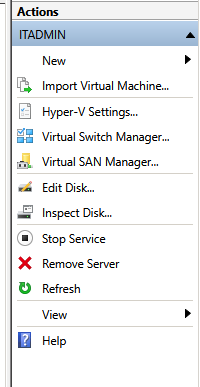
In the left panel, select the server where you want to create the VHD.
In the right-hand Actions pane, click New > Hard Disk.
3. Choose Disk Format
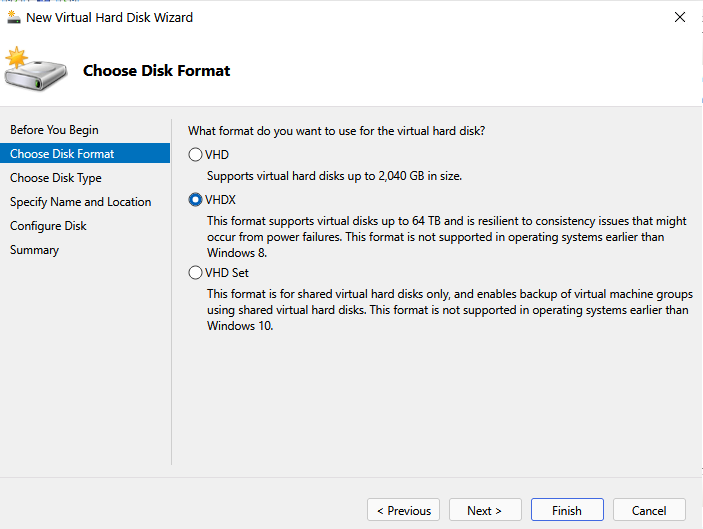
You’ll be prompted to choose between:
- VHD (up to 2TB, older format, more compatibility)
- VHDX (up to 64TB, more resilient, recommended for Windows 8 and later)
4. Select Disk Type
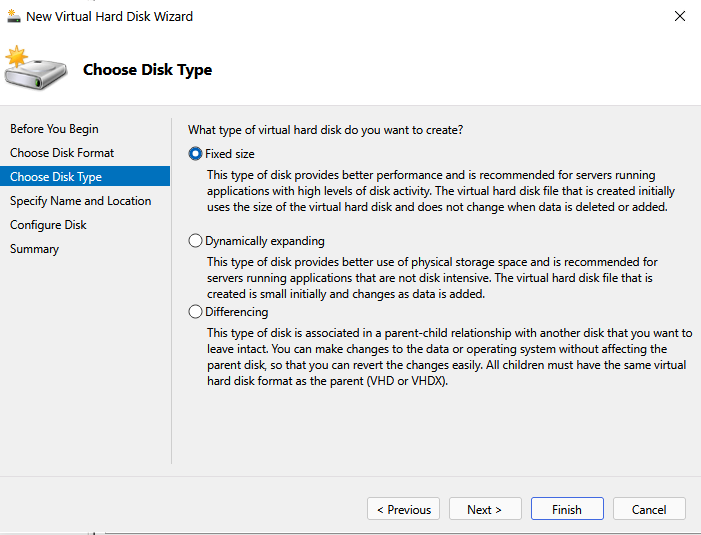
Choose the type of disk to create:
- Fixed Size – allocates the full space immediately.
- Dynamically Expanding – grows as data is added (saves space, slightly slower).
- Differencing – creates a child disk linked to a parent (used for testing/scenarios).
5. Specify Name and Location
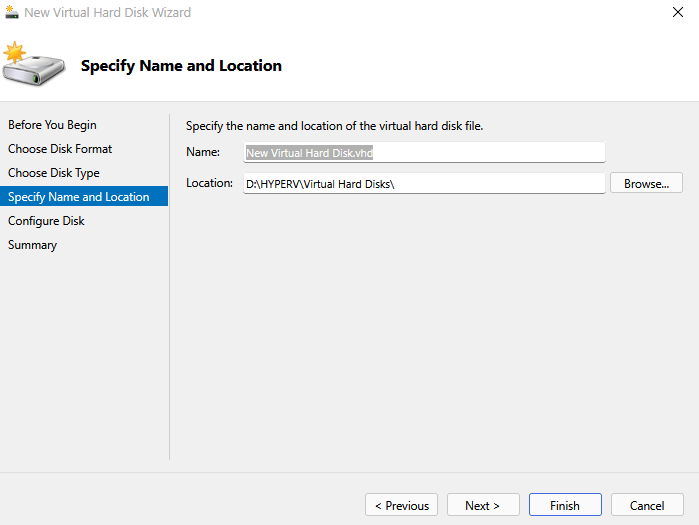
Enter a name for your VHD file and choose where it will be stored.
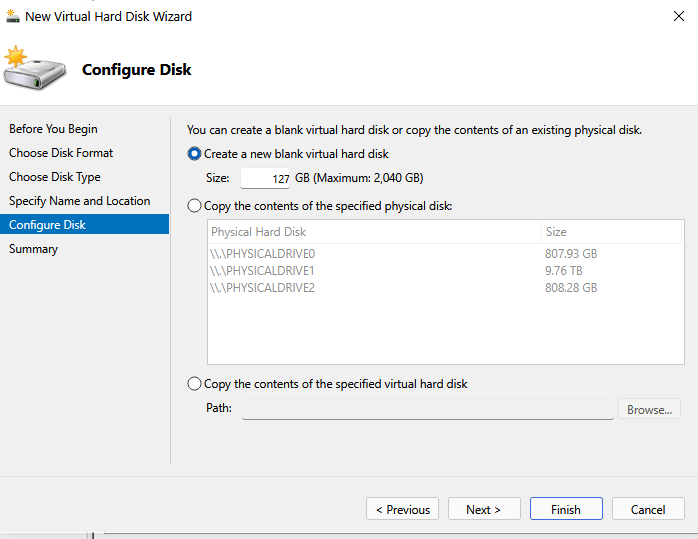
6. Configure Disk
Decide how to initialize your disk:
- Specify Size – set the maximum storage capacity.
- Copy Contents of Another Disk – clone an existing disk if needed.
7. Finish
Review your choices, then click Finish.
✅ You have successfully created a Virtual Hard Disk in Hyper-V on Windows 11.