Practical procedure and troubleshooting notes for Creating a Virtual Machine in Hyper-V.
Follow these steps to create a new Virtual Machine (VM) in Hyper-V on Windows 11:
1. Start the VM Creation Wizard
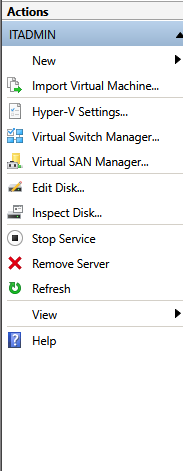
In Hyper-V Manager, select your server.
From the Actions pane on the right, click New > Virtual Machine.
2. Name and Location
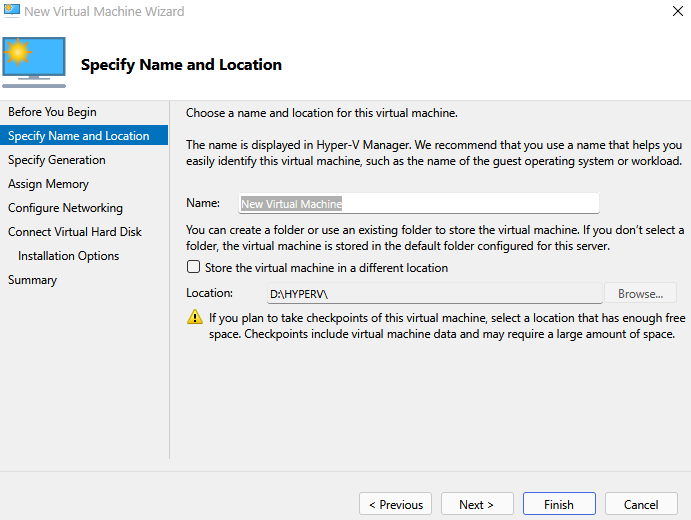
Enter a name for your VM and specify the location where it will be stored.
3. Select Generation
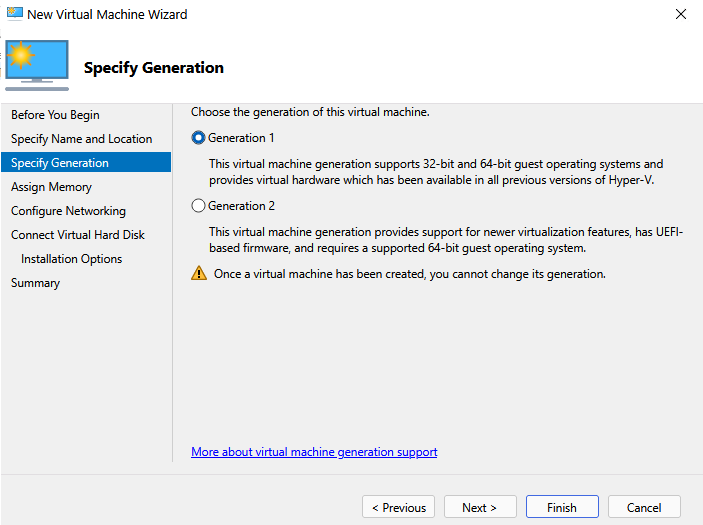
Choose the generation of the VM:
- Generation 1 – supports legacy BIOS and older OS compatibility.
- Generation 2 – supports UEFI, Secure Boot, and modern features (recommended for newer OS).
4. Assign Memory
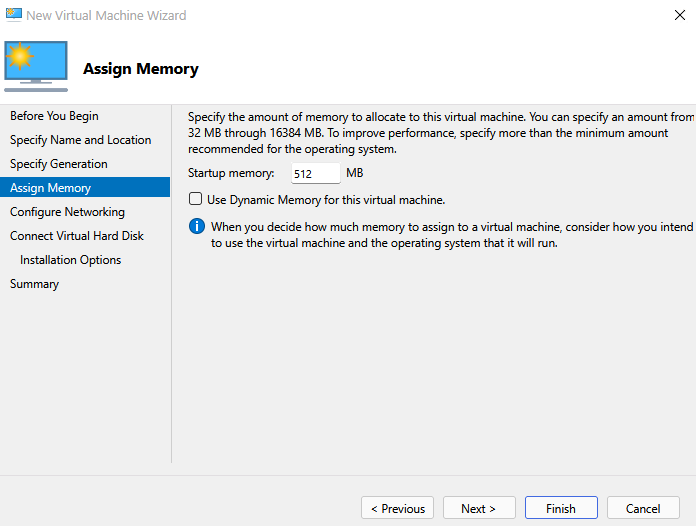
Specify the amount of startup memory (RAM) to allocate.
You can also enable Dynamic Memory to adjust memory use automatically.
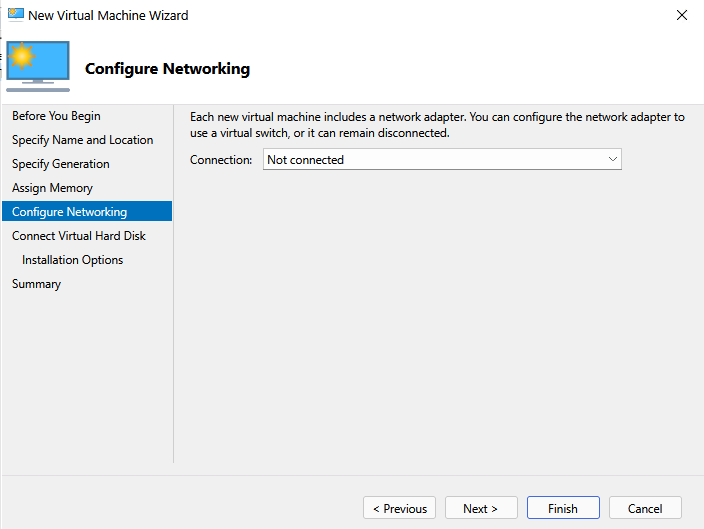
5. Configure Networking
Choose the network adapter to connect your VM to.
- Not Connected – no network.
- Default Switch / Virtual Switch – provides network connectivity.
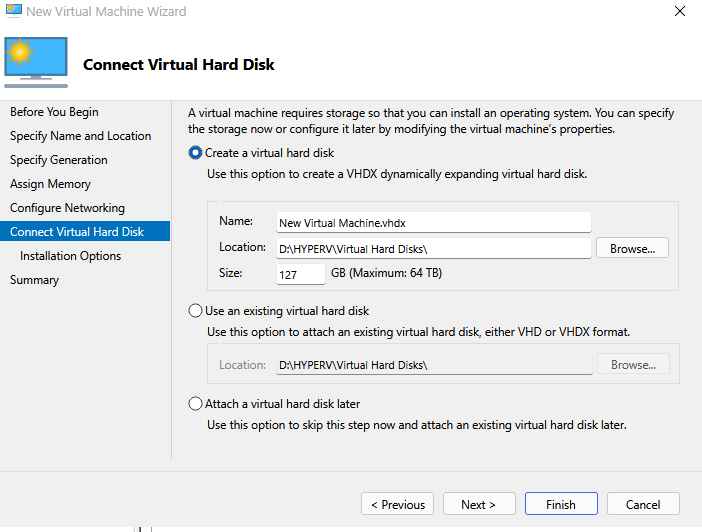
6. Connect Virtual Hard Disk
Assign a Virtual Hard Disk (VHD or VHDX) to your VM:
- Create a new virtual hard disk
- Use an existing virtual hard disk
- Attach a virtual hard disk later
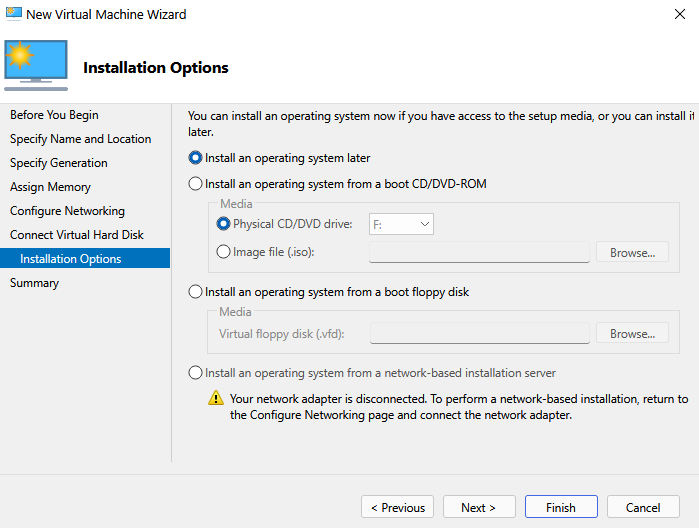
7. Installation Options
Choose how you want to install the operating system:
- Install from bootable image file (ISO) – mount an ISO to the VM.
- Install from a bootable CD/DVD
- Install from network-based installation (PXE)
- Install later – skip for now.
8. Review and Finish
Review your VM settings. Make sure everything matches your requirements.
When ready, click Finish.
✅ You have successfully created a Virtual Machine in Hyper-V on Windows 11.