Practical procedure and troubleshooting notes for Manually Add a Local Printer in Windows 11.
If Windows does not automatically detect your printer, you can add it manually by following these steps:
1. Open Settings
Press Win + I to open the Settings application.
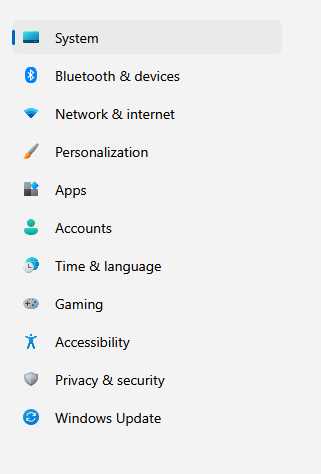
2. Navigate to Devices
Click Bluetooth & Devices in the left navigation pane.
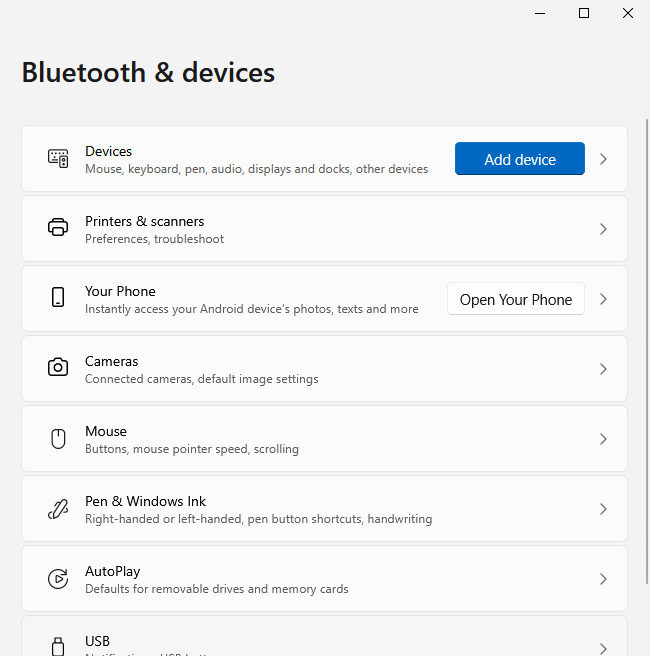
3. Open Printers & Scanners
Select Printers & Scanners.
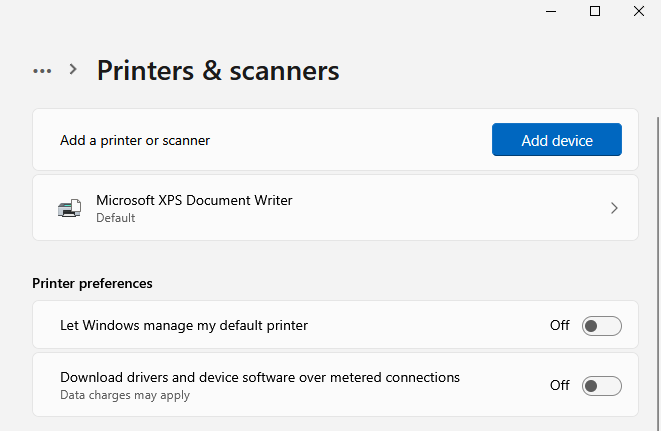
4. Add a Printer
Click Add Device.
5. Choose Manual Setup
When the system begins searching, select Add Manually.

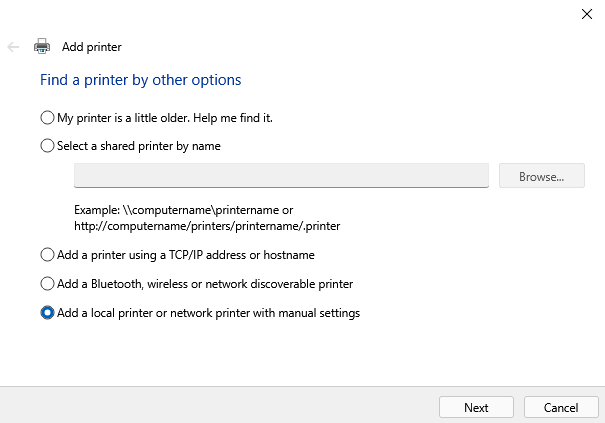
6. Select Manual Printer Option
In the Add Printer wizard, choose Add a local printer or network printer with manual settings.
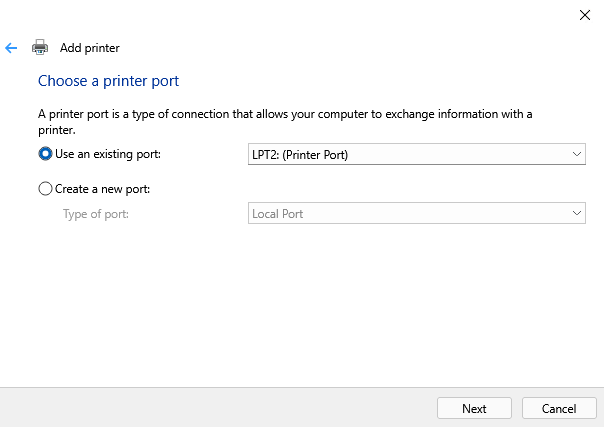
7. Choose Printer Port
Select an existing port (e.g., LPT1, USB) or create a new port.
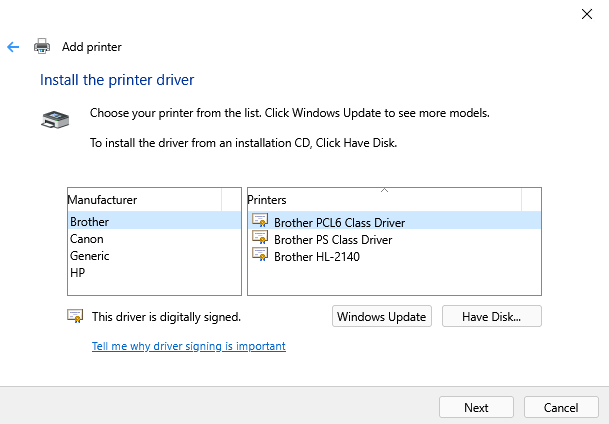
8. Install Printer Driver
Choose the appropriate printer driver from the list or provide a disk/INF file if needed.
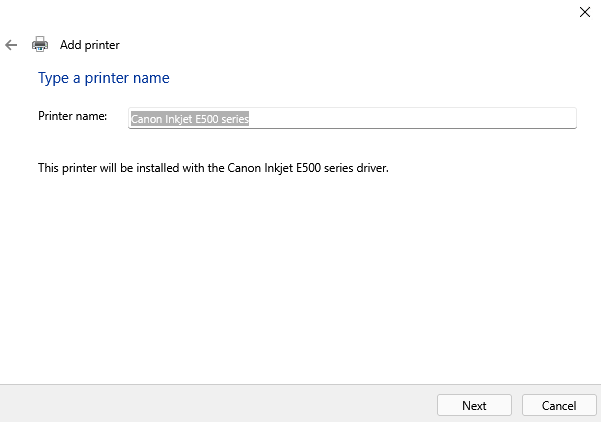
9. Name the Printer
Enter a name for the printer to identify it on your system.
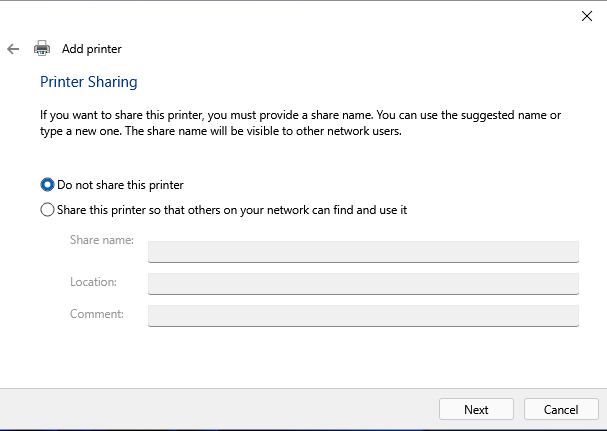
10. Printer Sharing
Choose whether to share this printer with other devices on your network.
11. Final Settings
You now have the option to:
- Set as default printer
- Print a test page to confirm installation
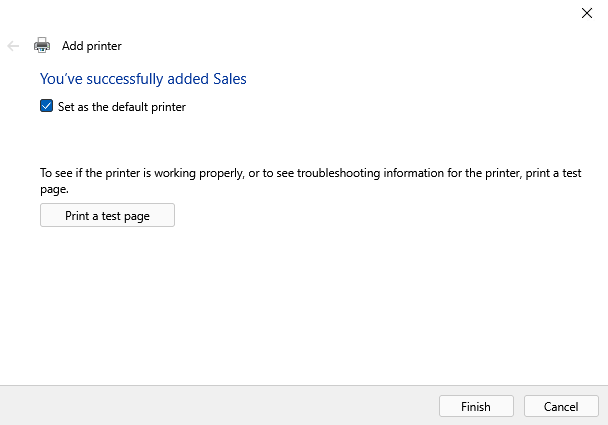
12. Finish
Click Finish.
✅ You have successfully added a local printer manually in Windows 11.