Practical procedure and troubleshooting notes for How to Share a Local Printer to other Computers on the Network.
If you want other computers on your network to use a printer connected to your PC, you can share it using these steps:
1. Open Settings
Press Win + I to open the Settings application.
2. Navigate to Devices
Select Bluetooth & Devices from the left navigation menu.
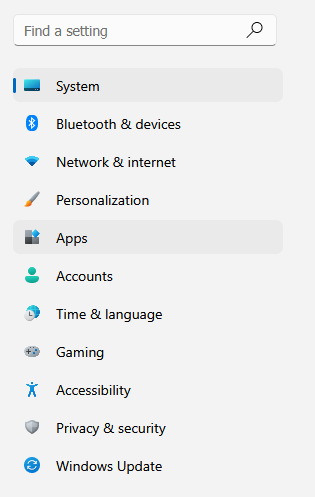
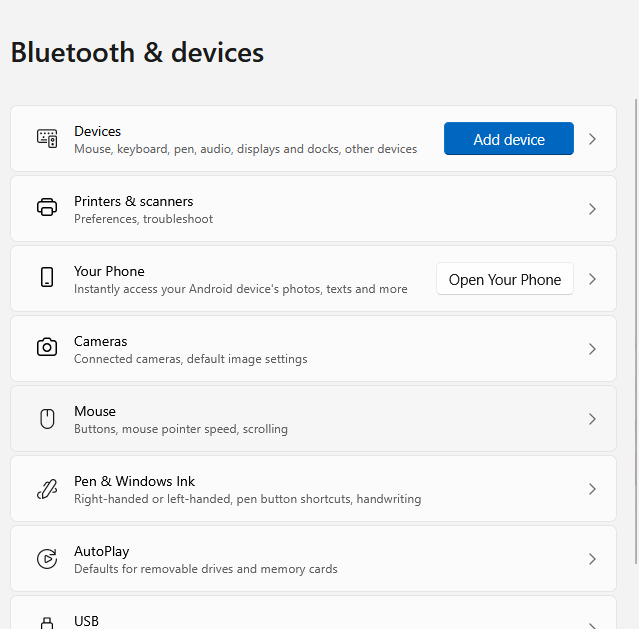
3. Open Printers & Scanners
Click Printers & Scanners.
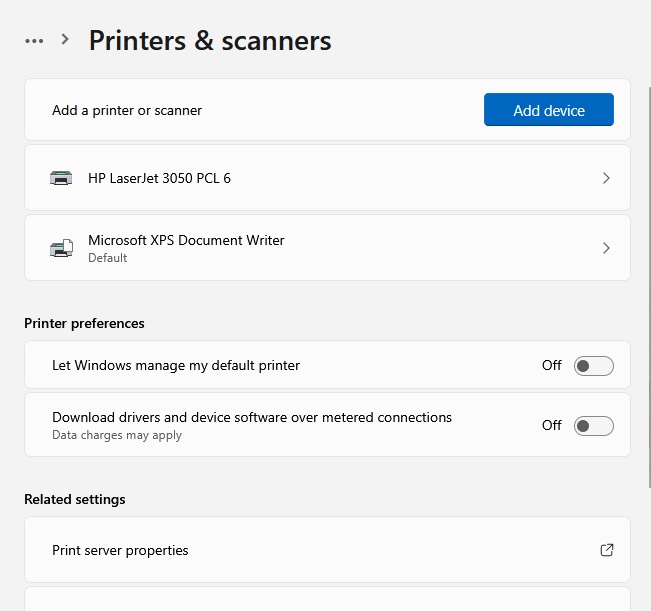
4. Select the Printer
Click on the printer you would like to share.
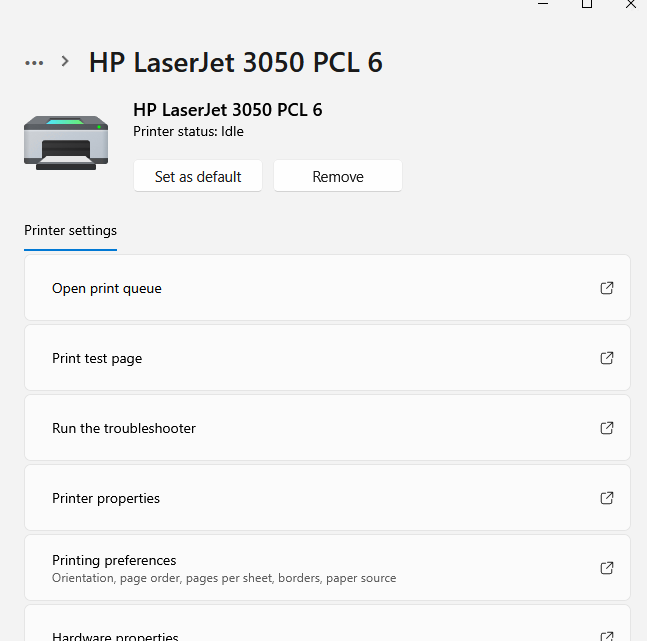
5. Open Printer Properties
Scroll down and select Printer Properties.
6. Go to the Sharing Tab
In the Printer Properties window, select the Sharing tab.
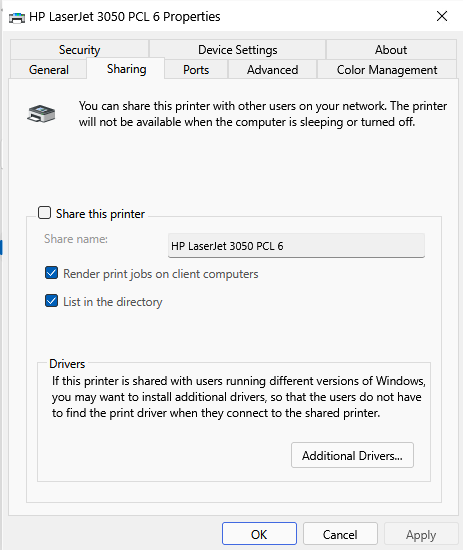
7. Enable Printer Sharing
Check Share this printer, then enter a Share Name (this is how it will appear on other computers).
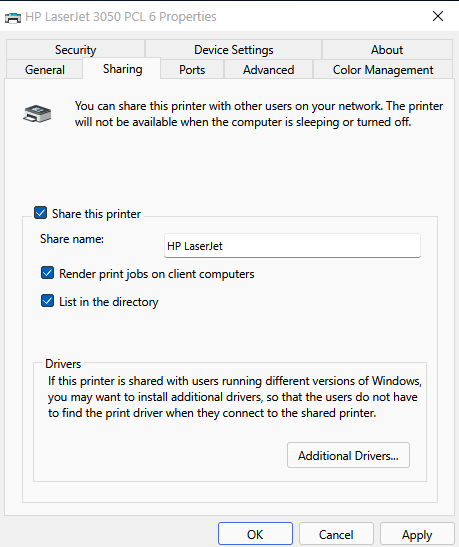
8. Verify from Another Computer
The printer should now be discoverable on the network.
On another computer, check Printers & Scanners to ensure it appears and can print.
✅ You have successfully shared a local printer with other computers on the same network in Windows 11.